How to Copy Image From Website: 4 Quick Methods
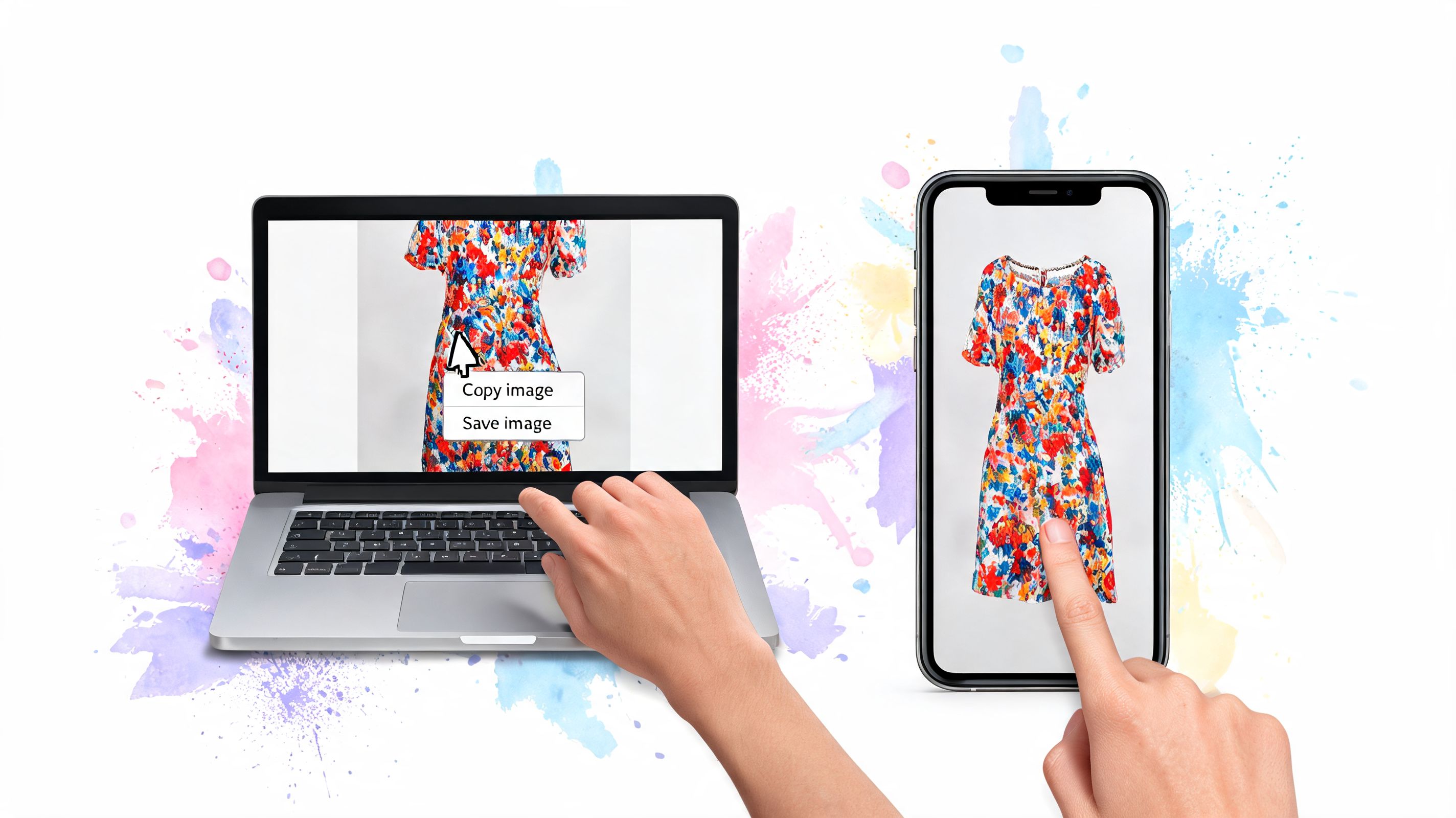
You've probably done this before. You spot a dress on Zara, a jacket on H&M, or a great secondhand find on Depop, then immediately want to do something with the image so you can decide whether the style is right for you.
Sometimes that means saving it. Sometimes it means grabbing the image URL. And very often, especially in fashion, it really means something else: you want to see how it looks, compare a few options fast, and move on without filling your downloads folder with random product shots.
Why Just Copy an Image When You Can Try It On
The old workflow is familiar. Find item. Save image. Open another app. Upload it somewhere. Repeat for every top, skirt, coat, or costume idea you're considering.
That still works, but it's starting to feel dated. In fashion browsing, people often want a quick visual answer, not a pile of files. Google Trends shows “copy image without saving” queries are up 150% in 2025-2026 among Chrome users in fashion categories, which tells you a lot about how people shop now.
A lot of shoppers aren't trying to build an archive. They're trying to answer one simple question: how will this style look on me?
If you like experimenting with visual styling tools, an online AI outfit changer can be a useful reference point for seeing how image-based outfit previews are evolving. The appeal is obvious. It shortens the path between “that looks nice on the model” and “I can picture this in my own wardrobe.”
The real goal isn't the file
When someone searches how to copy image from website, the literal task is easy enough on many sites. The harder part is what comes after.
You still need to:
- Compare options across different tabs and stores
- Preview the appearance of a piece instead of guessing from a mannequin shot
- Decide faster whether it matches your style, color preferences, or occasion
Practical rule: If your end goal is outfit visualization, downloading the image is only useful when it helps you reach that preview faster.
That's why browser-based virtual try-on has become such a compelling workflow for shopping. Instead of collecting product photos first and figuring them out later, you can go straight to the fun part and preview clothing with a virtual try-on tool.
Fashion browsing is more visual than ever
This is especially true when you're shopping secondhand or jumping between stores. A clean flat-lay shirt photo on Vinted, a polished product image on Zara, and a marketplace listing on Amazon fashion all present clothing differently, but your decision process is the same.
You want a quick visual read. Save it if you need to. But if you can skip the download and still see how it looks, that's often the better move.
The Classic Methods to Copy Images on Any Device
Classic image-copy methods still have a place, especially when you want one quick product photo for reference. I use them too. The trade-off is speed versus flexibility. Saving a file works, but if your real goal is to see a jacket, dress, or pair of shoes on yourself, the download step can feel like extra handling.
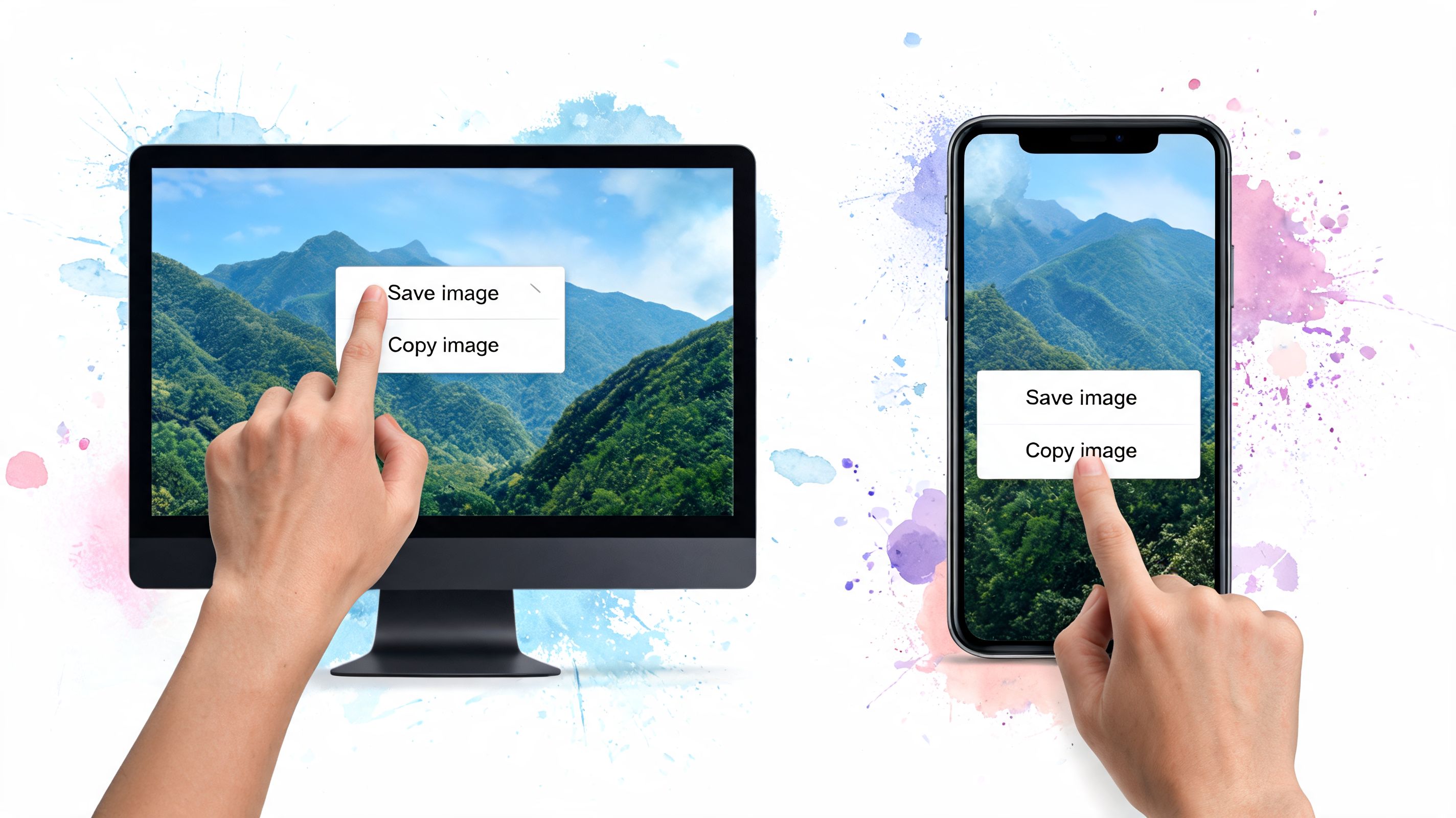
Right-click and save on desktop
On Windows, Mac, and Chromebook, right-click is still the first move to try.
- Open the webpage.
- Hover over the image you want.
- Right-click it.
- Choose Save image as or the closest browser option.
- Pick a folder and save.
For a single, unprotected image, this is usually the cleanest method because you get the original file instead of a cropped screen capture. Adobe's guidance on extracting images from web pages also notes two useful realities in one place: direct saving works well for standard images, and screenshots are the fallback when direct saving is unavailable, though screenshot quality can drop compared with the original file (https://www.adobe.com/acrobat/hub/extract-images-from-a-web-page.html).
If you need the file address rather than the download itself, this guide on how to copy the URL of an image covers that step.
Tap and hold on phone or tablet
Phones are often faster for casual browsing. Press and hold on an image in Safari, Chrome, or your preferred mobile browser, then choose Save, Download, or Copy, depending on what the site allows.
This works best on plain product pages with a standard image element. It gets less predictable on fashion sites that use sliders, zoom layers, or custom tap controls over the photo.
A missing save option usually means the website changed the interaction, not that your phone is failing.
Drag and drop on desktop
Drag and drop is underrated.
On some sites, you can drag an image straight from the browser into a folder, a note, or a design app. It feels fast because it skips the save dialog. Retail galleries often break this method, though, especially when the image sits inside a script-heavy viewer.
Screenshot when speed matters more than quality
A screenshot is the universal fallback. Use your snipping tool, keyboard shortcut, or phone screenshot gesture, then crop the frame.
For virtual try-on, screenshots are good enough for quick experimentation, especially if you just want to test silhouette or color direction. They are less useful when you care about fabric texture, edge detail, or an accurate view of prints and trims. That lost detail can affect how convincing the preview feels.
Workarounds for Websites That Block Image Copying
You know the situation. You right-click, and nothing useful happens. Or the site opens a custom menu, disables saving, or wraps the product image in a viewer that fights every normal browser action.
That isn't random. Many commerce sites are actively trying to control how their images are accessed.
Why the usual tricks fail
Some websites use simple right-click blocking. Others do much more than that, including overlays and rendering methods that make the image harder to grab directly.
That's why so many old tutorials feel useless now. A current overview notes that about 68% of e-commerce sites use advanced protections like canvas rendering or dynamic overlays, which block simple “Inspect Element” tricks and make specialized tools more reliable.
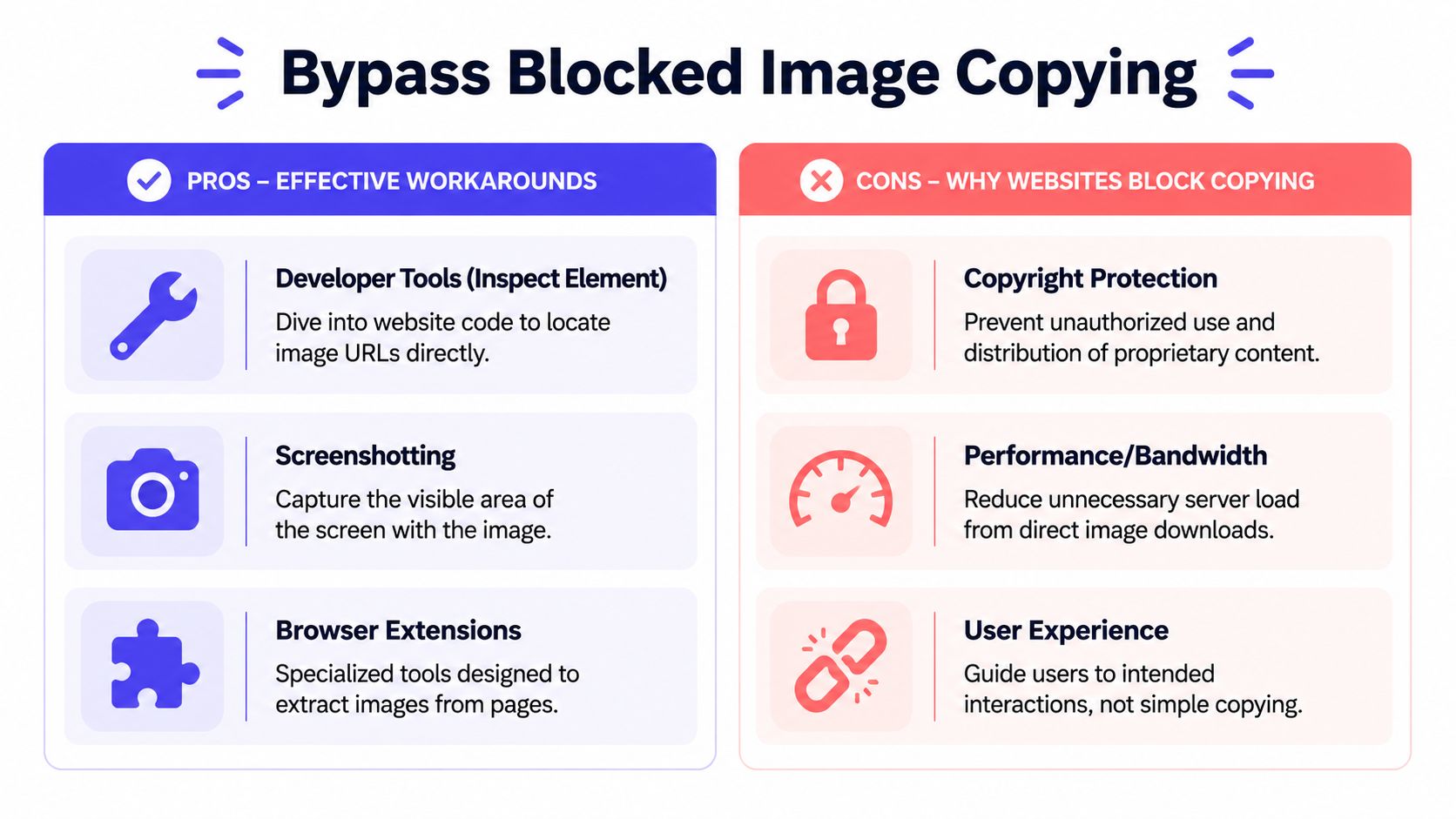
The three common workarounds
When the obvious method fails, people usually try one of these:
| Method | What it does | Trade-off |
|---|---|---|
| Inspect Element | Lets you dig into HTML and page structure | Can be slow, technical, and confusing on dynamic pages |
| Screenshotting | Captures whatever is visible on screen | Easy, but often lower quality |
| Browser extensions | Adds page-level tools for detecting or handling images | Depends on the extension and the site |
The most technical route is opening Developer Tools. In Chrome, you can right-click the page, choose Inspect, then search through the HTML for image elements. If the site uses normal image tags, you may find the file URL there. If not, you may have to switch to the Network panel and sort through requests.
Inspect Element works, until it doesn't
For technically comfortable users, Developer Tools can still be useful. But it's often overkill for someone who just wants to copy one clothing image and keep shopping.
A few issues show up repeatedly:
- Lazy-loaded galleries may not reveal the image in the obvious HTML block
- Background images can live in CSS instead of standard image tags
- Responsive image systems may serve multiple versions and not make the best one obvious
- Protected viewers can obscure the actual asset behind scripts
The harder a site works to control image interaction, the less practical manual extraction becomes for everyday shoppers.
If you browse fashion stores a lot, it makes more sense to use shopping-specific tools than to inspect every page by hand. A roundup of Chrome extensions for shopping is a better place to start than generic scraping advice if your real goal is visual decision-making.
What actually works in practice
For one image, screenshots are still the least frustrating fallback. For repeated shopping across Zara, H&M, Shein, Vinted, or Depop, manual workarounds quickly become tedious.
That's the key trade-off. The method might be technically possible, but still not be worth your time.
A Faster Way to Visualize Your Style Instantly
You spot a great trench on a store page, open three more tabs to compare colors, and then hit the usual friction. Save image. Find the file. Upload it somewhere else. Repeat. For virtual try-on, that routine slows down the fun part, which is seeing the outfit on yourself while you are still in shopping mode.
I built TryThisFit because I wanted a faster visual workflow. Instead of treating web images like files to collect, I wanted to turn them into instant outfit previews.
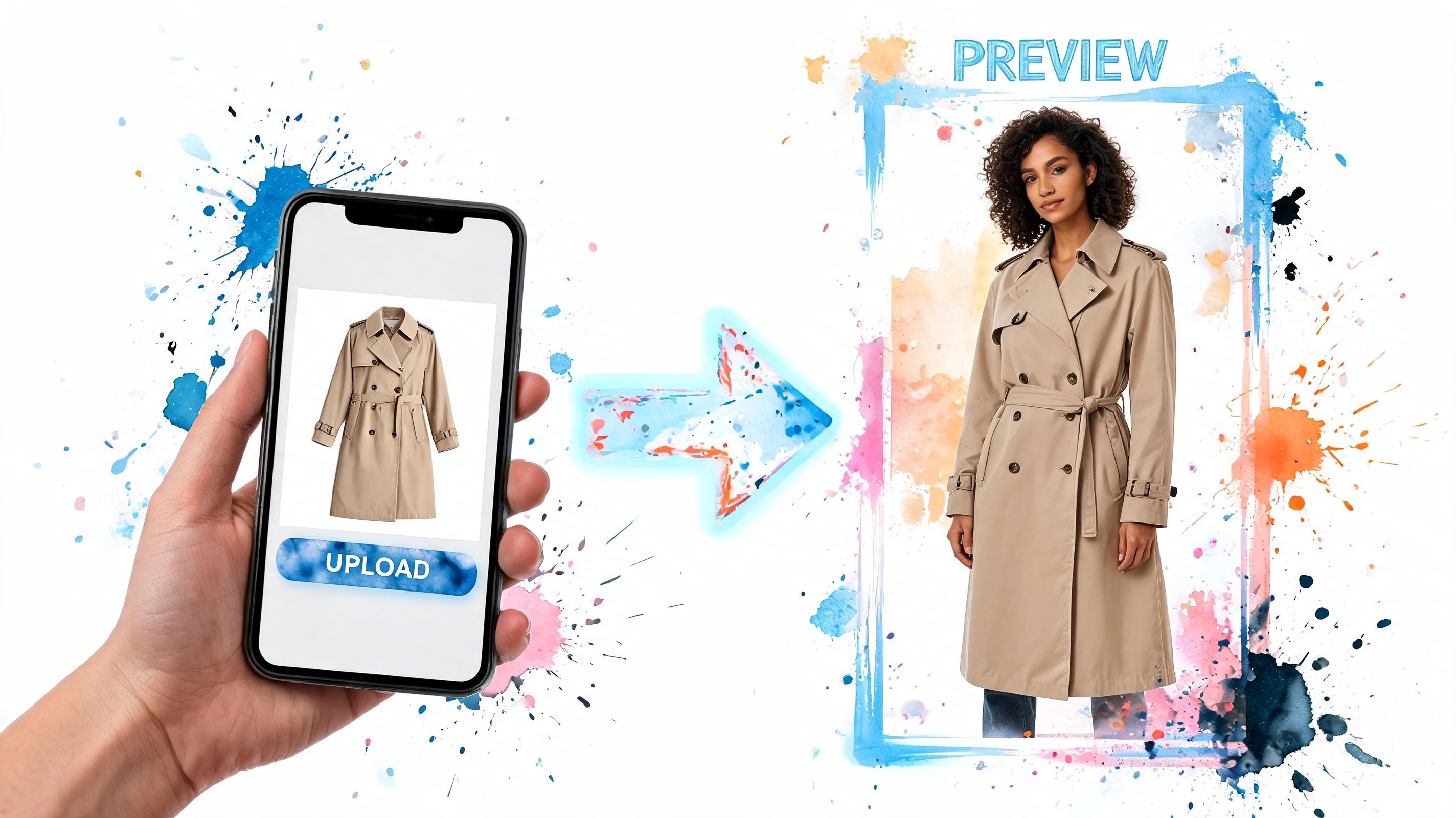
The extension focuses on that exact moment. You right-click a product image and preview the look in seconds, without breaking your browsing flow to save and re-upload files. That speed difference mirrors what teams see with automated image workflows in general. Manual copying works, but it rarely feels worth the effort once you are comparing multiple items across different stores.
Flat-lay clothing photos usually give the cleanest result because the garment shape is easier to read. Product shots from Zara, H&M, Shein, Vinted, Depop, and large marketplaces often work well for quick style checks. Retailers also care about image speed and clarity because better image handling can improve Shopify store performance, and that often means shoppers are viewing cleaner product assets in the first place.
For virtual try-on, the goal is fast visual confidence. You are checking style, color, and overall vibe before you buy.
A quick demo makes the workflow easier to picture:
<iframe width="100%" style="aspect-ratio: 16 / 9;" src="https://www.youtube.com/embed/y7Uu65GSSJg" frameborder="0" allow="autoplay; encrypted-media" allowfullscreen></iframe>Where this is most useful
The biggest benefit shows up when you want to decide quickly, not build a folder of downloaded images.
- Online shopping: preview a blazer, dress, or coat without saving product photos first
- Secondhand finds: test one-off listings from resale platforms before they disappear
- Costume planning: check themed outfits and statement pieces before ordering
- Fast comparison: judge multiple looks while staying on the page
If your real goal is visual decision-making, instant try-on is a better workflow than manual image collection.
Getting the Best Quality and Using Images Ethically
If you do need to copy an image manually, quality matters. A blurry or compressed product shot gives you a worse basis for any kind of visual decision, especially in fashion where detail changes the whole impression.
How to get the best version
Professional image extraction usually starts with the actual image element on the page. Zyte explains that the standard process is to parse HTML for <img> elements and their src attributes, while more advanced methods also check srcset attributes that can contain higher-resolution versions for different screen sizes.
For practical, non-technical use, that translates into a few simple habits:
- Open the image in a new tab if the browser allows it. Sometimes that reveals a cleaner file.
- Look for zoom views on product pages. Retailers often load larger assets for gallery or hover views.
- Check the page code only if needed. If you know how to inspect HTML, look at
srcsetas well assrc. - Prefer flat-lay photos for visual styling tools. They're usually the clearest and most consistent.
A quick quality checklist
| Check | Why it helps |
|---|---|
| Flat background | Makes the clothing outline easier to read |
| Front-facing garment shot | Gives a cleaner style preview |
| Higher-resolution image source | Preserves texture and shape better |
| Minimal overlays or labels | Keeps the garment visible |
If you run a store and want to understand the other side of this issue, this guide on how to improve Shopify store performance is useful because image delivery choices affect both loading speed and the quality shoppers perceive.
Use images for personal decision-making, not redistribution
Website images are usually protected content. That doesn't stop you from using them for personal shopping decisions, visual comparison, or trying to decide whether a style suits you.
It does mean you should be careful about reposting, republishing, or using brand images commercially. Using a product image to preview an outfit for yourself is very different from downloading a retailer's photography and republishing it elsewhere.
Respect the image owner's rights. Use copied product photos to help your own buying decision, not to build your own content library from someone else's catalog.
Stop Guessing and Start Visualizing Your Look
It's late, you've got a few shopping tabs open, and one great jacket leads to five more lookalikes. At that point, copying images into a downloads folder stops being helpful and starts creating clutter.
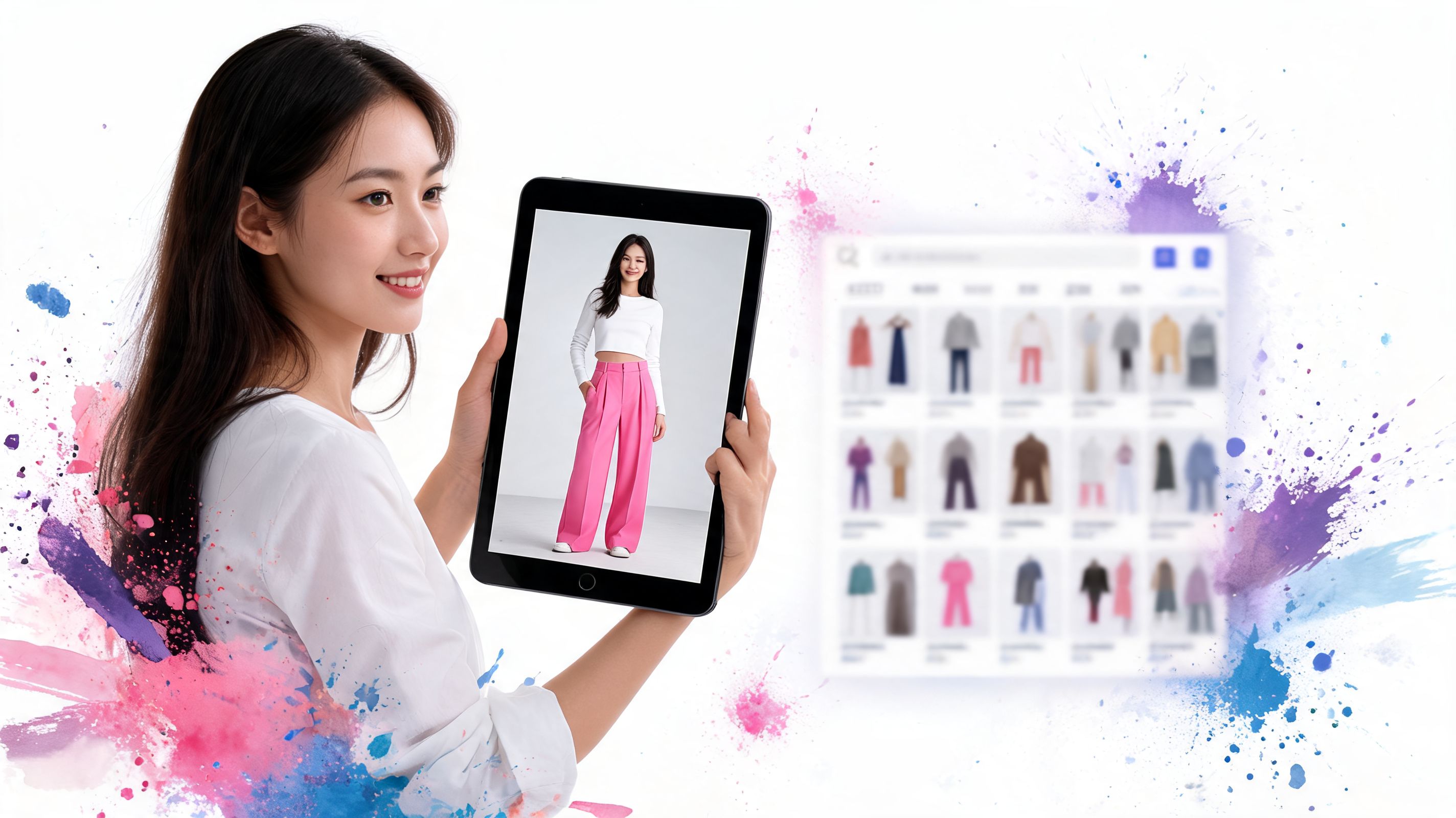
For style decisions, the primary goal is speed to visualization. I built TryThisFit around that idea because the best shopping moment is seeing whether a piece works on you while the product page is still open, not after you've saved, renamed, and sorted a pile of files you probably will not revisit.
That shift matters most when the photo alone is not enough. A structured blazer, a tricky color, or a bold secondhand find can look great on a model and still miss on your shape, wardrobe, or event plans. A quick visual preview gives you a clearer read on proportion, mood, and whether the piece deserves your attention.
It's a better workflow for comparison shopping, one-off resale listings, outfit planning, and those moments when several similar items start blending together.
If you want the faster route, go straight to https://trythisfit.com, install the Chrome extension at https://trythisfit.com/go/extension/chrome, and revisit your recent try-ons in https://trythisfit.com/history.
Copy images if you need to. Use them right away. Keep the looks that help you decide what to wear or buy.
Try Virtual Try-On Now
See how clothes look on you before you buy - works with any online store
Get Started Free