How to Copy the URL of an Image: A Visual Guide

You’re probably here because you found a dress, jacket, costume, or vintage gem online and thought, “Okay, but how would that look on me?”
That tiny bit of hesitation is normal. Product photos are polished, models are styled, and a flat product shot on Zara, H&M, Amazon, Shein, Vinted, or Depop doesn’t always make it easy to picture the vibe on your own body and in your own wardrobe.
The good news is that the trick is simple. If you learn how to copy the URL of an image, you can grab the direct web address of a clothing photo and use it for all kinds of visual tasks, including style preview tools, mood boards, shopping comparisons, and outfit planning.
From Window Shopping to Style Visualization
Late-night browsing has a pattern. You scroll, you spot something amazing, you open five tabs, and then you stall because you still can’t quite picture the final look.
An image URL solves that first problem. It’s the direct address to the image file itself, not just the store page. Once you have that link, you can paste it into tools that work with images, save it for later, or keep your shopping process more organized.
Consider this:
| What you copy | What it is | Why it matters |
|---|---|---|
| Page URL | The address of the product page | Good for revisiting the listing |
| Image URL | The address of the photo itself | Useful when a tool needs the actual image |
A lot of readers get stuck here because page links and image links can look similar at first glance. But they do different jobs. If a tool asks for an item image, it usually wants the image URL, not the full product page.
A product page tells you where the item lives. An image URL tells your browser where the picture lives.
That distinction matters most when you’re trying to visualize style quickly. If you’re comparing a trench coat from Zara with a blazer from H&M and a secondhand dress from Vinted, copying image URLs keeps the process clean and fast.
There’s also a nice confidence boost in knowing what you’re looking at. Instead of guessing whether a site lets you save or share the right image, you know how to get the direct link yourself.
Copying Image URLs on Your Desktop Browser
On desktop, the easiest method is still the classic one. In Chrome, Firefox, Edge, and Brave browsers, which command over 70% global desktop market share per StatCounter 2026 data, the primary expert method is to right-click the image and choose “Copy image address” or “Copy image link”. On standard pages, that method has a near-100% success rate, and if a protected page blocks it, using “Open image in new tab” first boosts success to 98% according to this guide on copying and pasting image URLs.
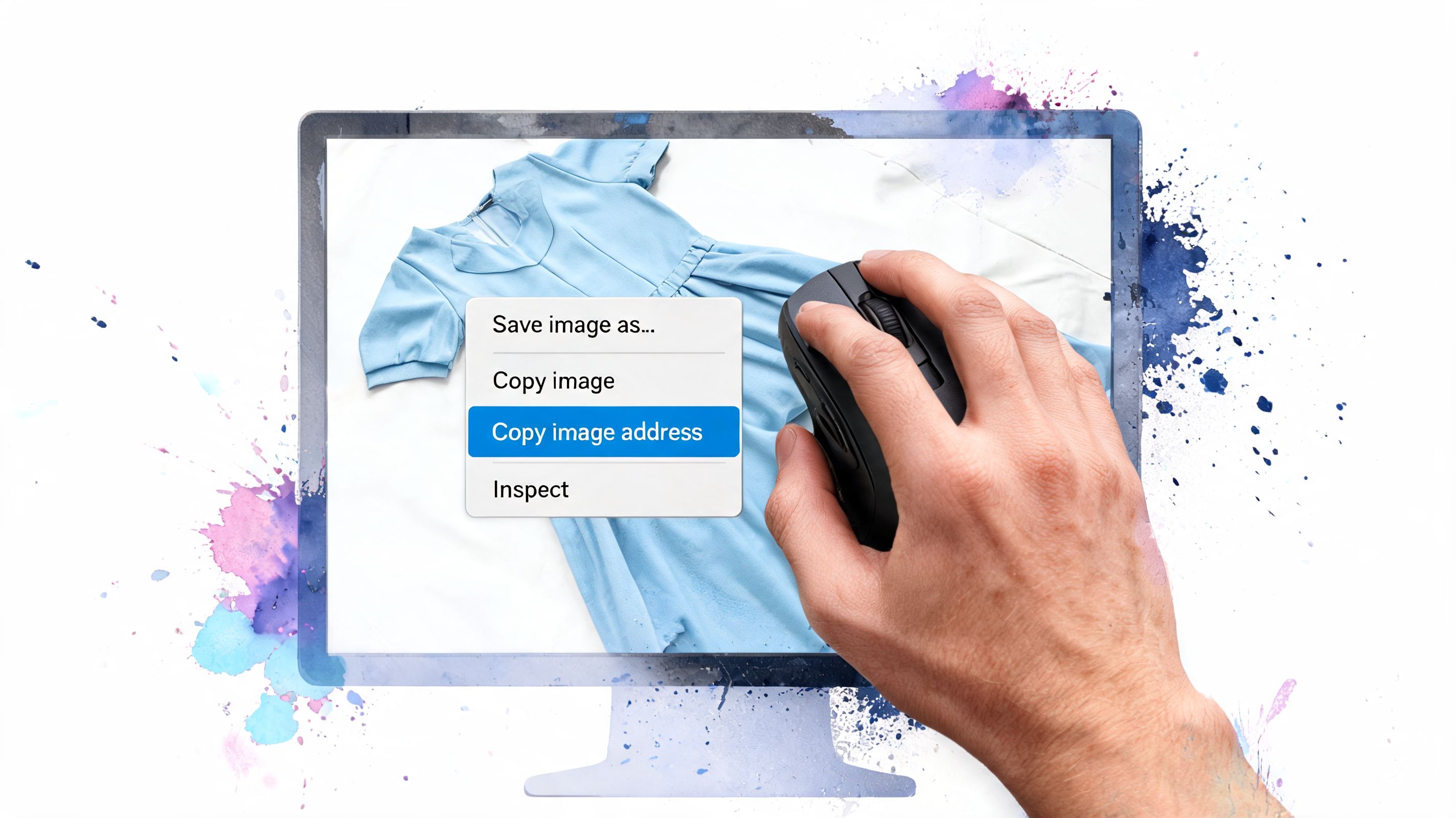
The basic right-click method
If you’ve never done this before, use these steps:
-
Hover over the actual image
Move your cursor directly onto the product photo. If there are icons floating over it, like zoom buttons or wish-list hearts, try a slightly different spot on the image. -
Right-click once
A menu should appear. -
Choose the copy option
In Chrome, you’ll usually see Copy image address.
In Firefox or Edge, it may say Copy image link. -
Paste somewhere to check it
Open a note, text doc, or a new tab and paste. A real image URL often starts withhttps://and may end in.jpg,.png, or.webp, though not always.
Where people get confused
The most common mistake is copying the link from the whole product card instead of the photo itself. If your pasted result sends you back to the product page, you copied the page link, not the image.
A second snag is layered site design. Fashion stores love hover effects, quick-shop overlays, and clickable containers. Those can intercept your click.
Try this mini checklist:
- If you get the product page link, right-click closer to the center of the image.
- If no menu appears, the site may be blocking right-click actions.
- If the URL looks strange, paste it into a new tab and see whether it opens the standalone image.
Practical rule: If the link opens only the photo by itself in a tab, you’ve got the right kind of URL.
A smoother option for Chrome shoppers
If you shop mostly in Chrome, it helps to know there are browser tools built around this exact behavior. I like this roundup of Chrome extensions for shopping because it shows how right-click actions can turn repetitive browsing into something much faster.
That’s especially handy on clothing sites where you’re comparing lots of images in a row. Once you understand the manual method, browser extensions make more sense because you know what they’re doing behind the scenes.
Grabbing Image Links on Your Phone iOS and Android
Phone shopping is a different rhythm. You’re on the couch, in line for coffee, or halfway through a secondhand scroll spiral, and you want the image link without opening a laptop.
On mobile, the key gesture is long-press. According to this video reference on mobile image URL copying, the gesture has been standardized since iOS 4.0 and Android 2.3 and now serves 5.3 billion smartphone users globally. The same source notes that 70% of users shop mobile-first, which is why copying product image URLs on sites like Shein or Amazon has become such a practical part of mobile shopping workflows in this YouTube walkthrough on image link copying.
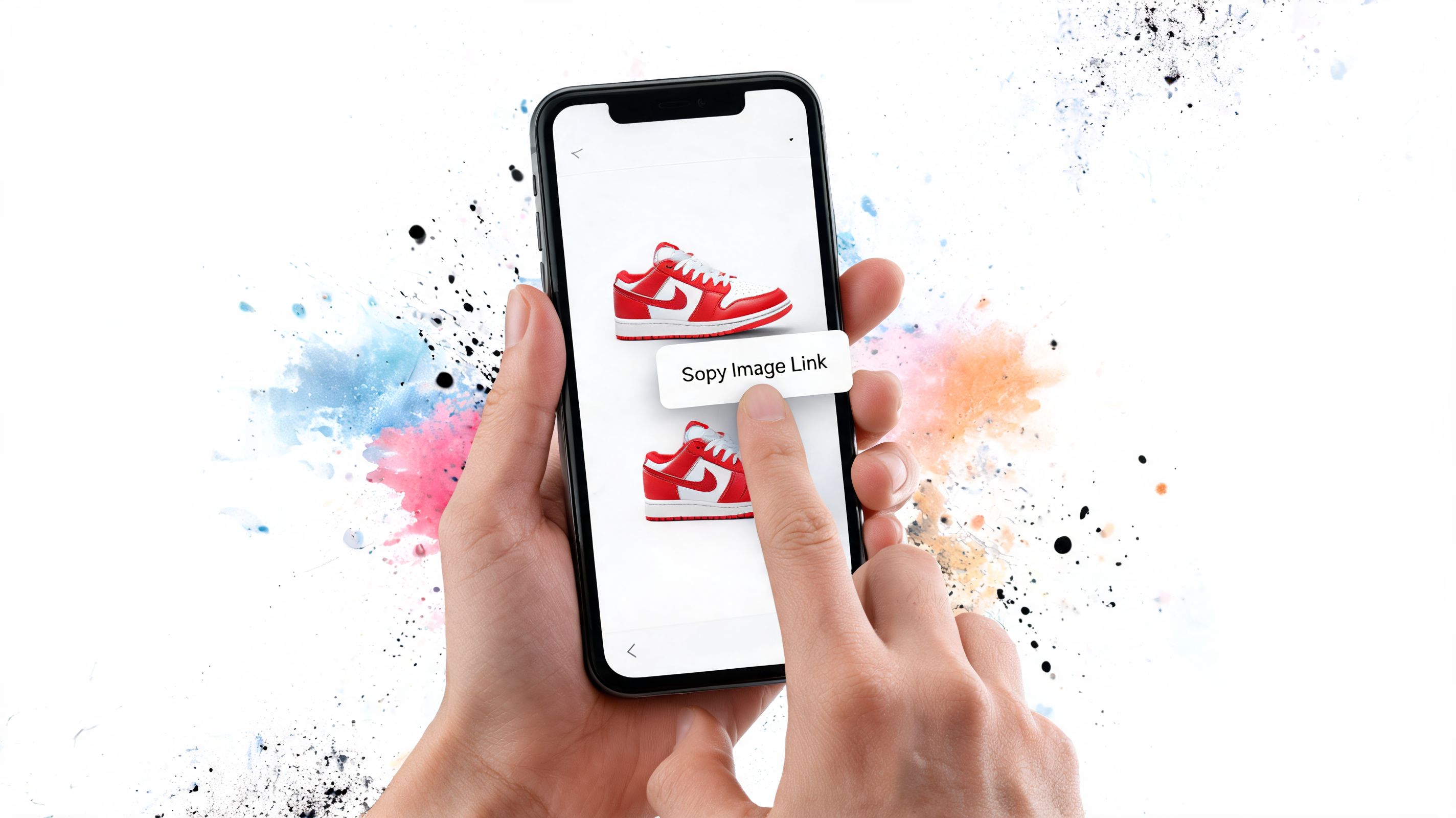
The long-press move
Open the product page in your mobile browser. Then press and hold your finger on the image itself for a moment.
A menu should pop up. What you see depends on your phone and browser, but look for wording related to copying the image link or address.
Here’s the quick version:
-
On iPhone or iPad
Press and hold the image, then choose the option that copies the image link if it appears. -
On Android in Chrome
Press and hold, then look for Copy image address. -
If the menu seems wrong
The site may be detecting the image as part of a gallery or slider, so try another product photo on the same page.
A lot of visual-first shoppers also save links to use later in social posts, group chats, or shopping recaps. If you’re also trying to grow your audience by sharing Instagram, the same habit applies: know how to grab the exact link you want instead of the nearest page around it.
If your phone keeps selecting text instead
That happens on cluttered product pages. Your finger may be landing on a caption, button, or swipe carousel instead of the photo.
Try these fixes:
- Zoom in a little so the image is easier to target
- Tap once first to bring the image into focus
- Use the browser menu if the site opens the image in a viewer
If you want to see the gesture in action, this short demo helps:
<iframe width="100%" style="aspect-ratio: 16 / 9;" src="https://www.youtube.com/embed/NfKlkfc_UB0" frameborder="0" allow="autoplay; encrypted-media" allowfullscreen></iframe>A simple next step after copying
Once the image URL is on your clipboard, you can paste it into whatever visual tool you’re using or save it in notes for later. If you often spot clothes through screenshots instead of store listings, this guide to apps to find clothes from pictures is a useful companion because it covers the other half of the workflow.
Advanced Tricks for Tricky Websites
Some sites don’t play nicely. You right-click and nothing happens. Or the copied result isn’t the image you wanted. Or the image sits inside a gallery, a script-heavy viewer, or a lazy-loaded layout.
That doesn’t mean you’re stuck.
The “Copy image address” feature in Google Chrome first became available in version 5.0 in 2010, and it changed image handling by replacing older, slower workarounds. Before that, people often had to inspect page source code, which took 20 to 30 seconds per image. That shift is described in Cloudinary’s overview of how Chrome’s copy image address feature works.
First fallback open the image in a new tab
If right-click copy fails, try opening the image by itself first. On many sites, that strips away the product page clutter and gives you a clean address bar with the direct image URL.
Use this sequence:
- Right-click the image
- Choose Open image in new tab if available
- Go to the new tab
- Copy the address bar URL
This is usually the least technical fix, and it works surprisingly often on store pages with overlays or scripts.
When a page blocks the easy path, opening the image alone often reveals the clean link hiding underneath.
Second fallback inspect the image element
This sounds more intense than it is. You don’t need to be a developer to use it.
Right-click the image and choose Inspect. A panel opens with the page code, and your browser usually highlights the part related to the element you clicked. Look for an <img> tag and then find its src value.
A simplified example looks like this:
| Code part | What it means |
|---|---|
<img |
This is the image element |
src= |
This is where the image file address lives |
"https://..." |
This is the URL you want |
Double-click the URL, copy it, and paste it into a new tab to test it.
What to watch for
Not every image sits neatly in a src field. Some sites load images in alternate ways, especially on product grids and mobile layouts.
Look out for:
-
Lazy-loaded images
The visible image might be stored in something likedata-srcinstead ofsrc. -
Background images
Some banners and styled product cards use CSS background images rather than normal image tags. -
Temporary image variants
You may spot long URLs with extra parameters. That’s normal. Copy the full link.
If one image keeps resisting, don’t wrestle with it forever. Open a different angle of the same item or use a cleaner product photo from the listing.
Putting Your Image URL to Work for Your Style
Once you’ve copied an image URL, the technical part is done. Now, the enjoyable part begins.
A direct image link is useful because it lets you move from “I like this item” to “I can preview the appearance and compare the style.” That’s especially appealing when you’re choosing between a sleek trench, a slouchy knit, a bold Halloween costume, or a secondhand find with only one decent photo.
What kinds of images work best
Not every fashion image gives the same result in a visual preview tool. Clean product photos are easier to work with than busy lifestyle shots.
The strongest choice is usually:
- Flat-lay clothing photos with the item laid out clearly
- Simple backgrounds with less visual clutter
- One item at a time instead of a full editorial collage
If the image looks easy to understand at a glance, it’s usually a better candidate for style visualization.
For example, a plain product shot from Zara, H&M, Shein, Vinted, or Depop is often more useful than a dramatic campaign image with lots of movement and props. The goal isn’t to prove sizing. The goal is to see how the style looks, preview proportions, and compare the overall appearance.
Here’s one visual example:

Smart ways to use copied image URLs
A copied image URL becomes more valuable when you use it intentionally. Some of my favorite use cases are simple:
-
Compare outfits before buying
Save a few item links and review the looks side by side. -
Plan secondhand purchases
Vintage and resale listings don’t always give you multiple angles, so every clear image matters. -
Test costumes and event looks
Halloween, themed parties, and travel outfits are easier to picture when you can preview the appearance first. -
Keep your inspiration tidy
If you also resize or prep images for personal projects, Digital ToolPad's secure tools are a helpful reference for handling images without a messy workflow.
If you like shopping by image first and details second, find clothes by photo is another handy direction to explore.
The real win isn’t the copied link itself. It’s how quickly that link helps you decide whether a style feels like you.
Quick Answers to Common URL Questions
Is it okay to copy an image URL
For normal personal browsing and visual reference, copying a public image URL is generally just a way to reference the image location in your browser. You’re not claiming ownership of the photo solely by copying its address.
That said, copying a URL isn’t the same thing as getting permission to republish the image elsewhere. Personal use and public reuse are different situations.
Why is the link so long
That’s common. Retailers often add extra parameters to image URLs for delivery, sizing, or format handling.
Don’t trim anything unless you know exactly what you’re removing. If the full pasted link opens the image, it’s doing its job.
Why doesn’t the copied URL work later
Sometimes the site changes its image system, updates product pages, or removes the listing. In those cases, an older image link can stop working.
If that happens, your best options are:
- Return to the product page and copy the image again
- Use the fallback methods from the tricky websites section
- Grab a different photo of the same item if another angle is available
Does the file ending matter
Not much for basic copying. You may see familiar endings like .jpg or .png, or you may see a more complex link with no obvious ending.
The simplest test is still the best one. Paste it into a new tab and see whether it opens the image by itself.
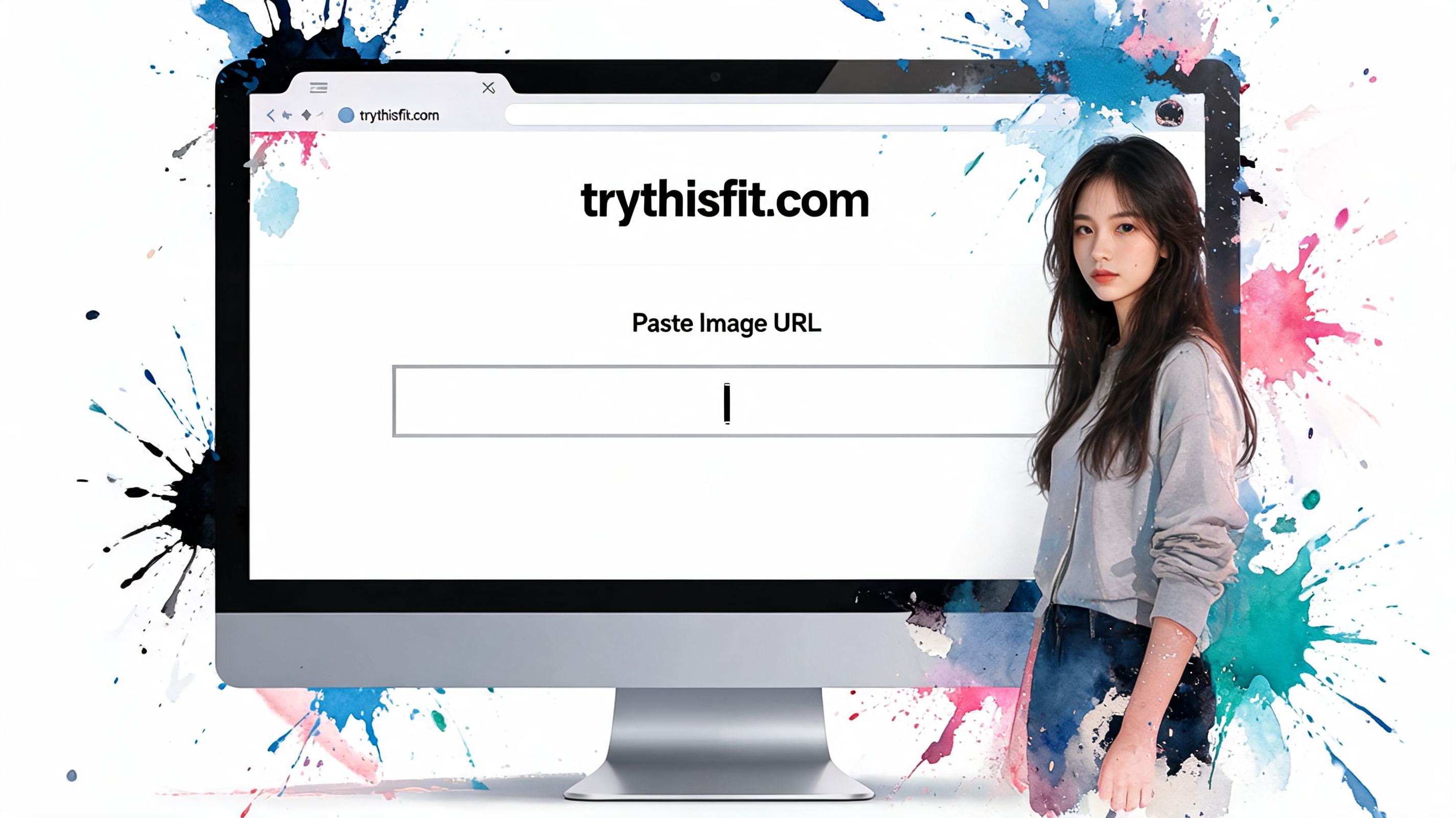
If you want to turn that copied image URL into a quick outfit preview, try TryThisFit. Paste an item image, upload your photo, and see how the style looks in seconds. No account needed. You can also install the free Chrome extension in a couple of seconds at TryThisFit’s Chrome extension page, try items directly from shopping sites, and revisit saved looks in your try-on history.
Try Virtual Try-On Now
See how clothes look on you before you buy - works with any online store
Get Started Free