Learn How to Use Chrome Extension: Virtual Try-On 2026
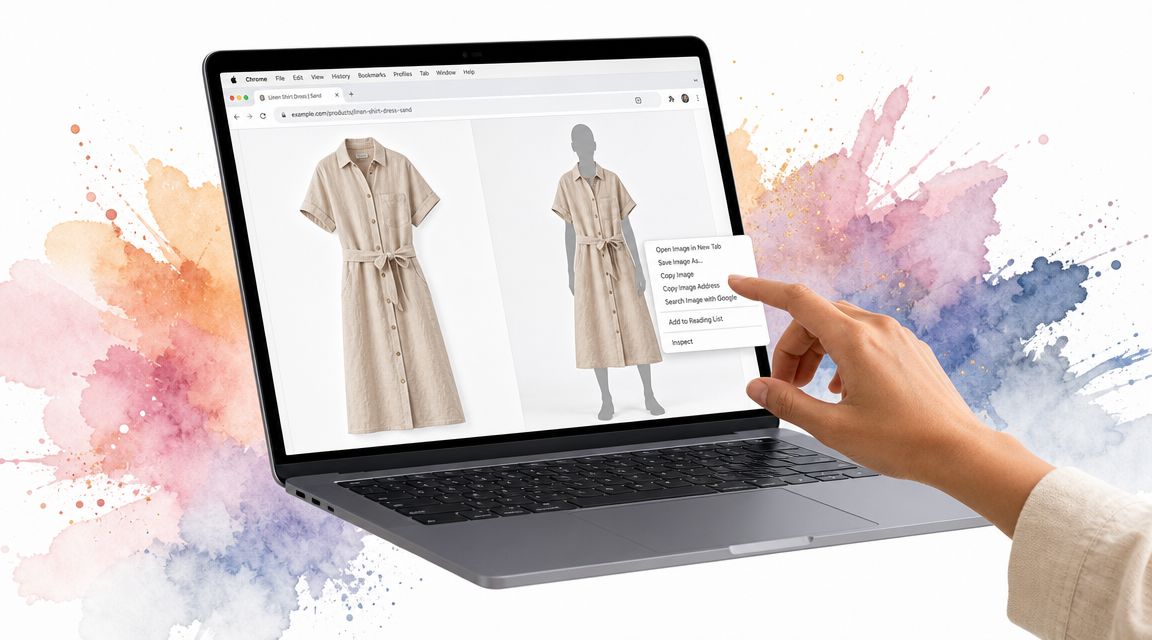
You've probably done this before. You open Zara in one tab, H&M in another, maybe Amazon fashion in a third, and then you stall on the same question every time. Not whether the item exists, but whether the style will look right on you.
That's the gap most shopping pages never solve. Product photos show the outfit on a model, not on your body, with your proportions, your vibe, and the way you want to dress. If you're searching for how to use a Chrome extension for shopping, the main advantage isn't technical. It's getting to that visual moment fast.
See Your Style Before You Shop
Online shopping gets messy when every product starts to blur together. A coat looks amazing on one site, a dress looks tempting on another, and a secondhand find on Vinted feels too risky because you can't picture it on yourself.
That's why browser add-ons matter so much. The Chrome Web Store is already a huge ecosystem, with an independent 2024 analysis counting 111,933 unique extensions, which shows how mature and specialized Chrome tools have become for everything from productivity to shopping, according to DebugBear's Chrome extension statistics review.
For shopping, the useful kind of extension removes steps. You shouldn't have to download images, move between apps, or learn a complicated workflow just to preview a look.
The moment that changes everything
The best outcome is simple. You spot a piece you like, click once or right-click once, and suddenly you can see how it looks instead of guessing.
That's the appeal of visual shopping tools such as virtual try-on tools. They turn a static product page into something personal. A long trench coat from Zara, a vintage jacket from Depop, a Halloween costume from a marketplace listing. The page stops being just a catalog and starts becoming a mirror.
You don't need sizing promises to make a better decision. You need a clearer preview of the style.
If you came here searching for how to use Chrome extension features in a practical way, consider it this way. A good extension should feel invisible until the exact second you need it, then give you the answer that matters most. How the outfit looks on you.
Installing the Extension in Just a Few Clicks
You only need a minute here. The install is the boring part in the best possible way, because the actual payoff comes later when you right-click a product photo on any store and see the outfit on yourself.
Google's Chrome Web Store metrics documentation shows that extension makers track installs, impressions, weekly users, and conversion rates. That tells you how standard this flow is. Click Add to Chrome, confirm, and Chrome handles the rest.
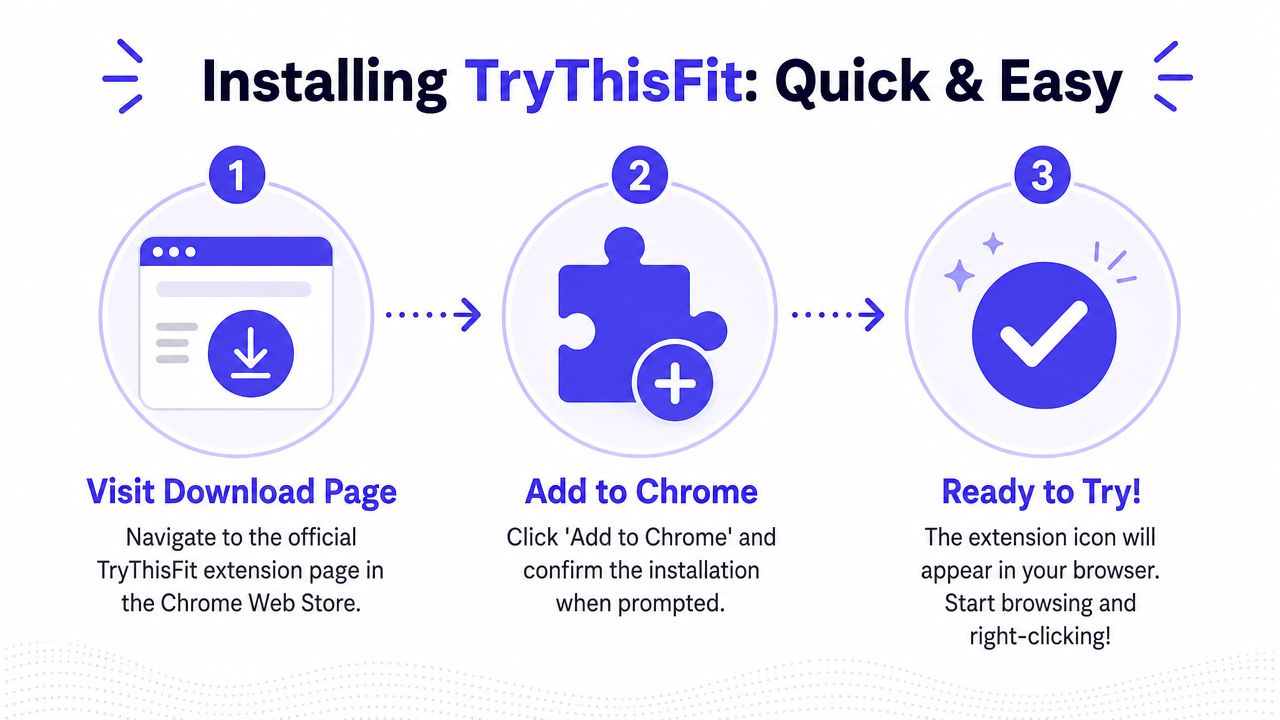
The quick install flow
Follow these steps:
- Open the free Chrome extension page.
- Click Add to Chrome.
- Approve the install in Chrome's popup.
- Click the puzzle-piece icon at the top right of Chrome.
- Pin the extension so the icon stays in your toolbar.
Done.
If you want a short primer before installing, this guide on what a Chrome extension is explains the basics in plain English. If you also use Chrome for work, this separate guide on how to Boost productivity for Google Workspace shows the same idea in a different context: fewer clicks, faster results.
Why pinning helps
Pinning solves a common bit of confusion. After install, Chrome often hides new extensions inside the puzzle menu, so it can look like nothing happened.
Pin it once and the tool stays visible. That matters because TryThisFit works best when it feels immediate. You spot a look you love, the icon is already there, and you are one click away from the fun part instead of digging through browser menus.
Bring Any Outfit to Life with a Simple Right-Click
You're browsing a store you already trust, spot a jacket you love, and want one answer before you spend money. What does this look like on me? That answer can come from the page you're already on.
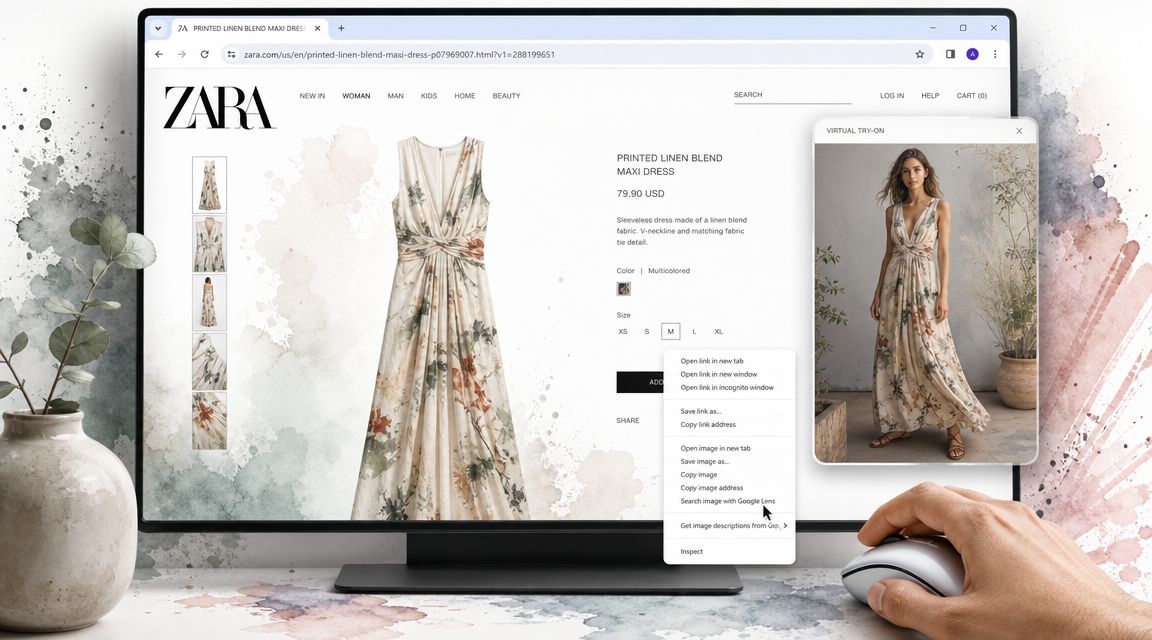
How the right-click workflow works
The flow is simple because it stays inside your normal shopping habit. You keep browsing the same product page, use the product photo in front of you, and start the preview from Chrome's right-click menu.
Here's what that looks like:
- Open any product page with a clear clothing image.
- Right-click the photo you want to try on.
- Pick the try-on option from the menu.
- Let the preview generate.
That's the whole idea. No downloading images first. No jumping into a separate app built for one retailer. No rebuilding the same outfit in another tool just to see whether the vibe works.
Why this feels different from store-only tools
A lot of shopping apps work like a fitting room inside one mall. If you leave that mall, the tool stops being useful. A right-click extension works more like a universal remote for product images. If the page has an image, you can usually keep the same flow.
That matters when real shopping gets messy. You might compare a blazer from Zara, a dress from H&M, a resale find on Depop, and a one-off piece on Vinted in the same session. The steps stay familiar each time, so your attention stays on the outfit, not on learning a new setup for every store.
Some pages make the image harder to grab. If that happens, this guide on how to copy the URL of an image shows a quick workaround.
Here's a short look at the browsing flow in action:
<iframe width="100%" style="aspect-ratio: 16 / 9;" src="https://www.youtube.com/embed/ARN4xSc-4hI" frameborder="0" allow="autoplay; encrypted-media" allowfullscreen></iframe>A simple real-world example
Say you find a long trench coat while scrolling. On the model, it looks polished. On you, it might feel sharp and dramatic, or it might feel too much. Right-click the image, generate the preview, and you go from guessing to seeing.
That's the wow moment.
It works especially well for secondhand shopping, where each listing is unique and the photos may disappear later. A quick preview helps you judge the overall look on yourself, even when you cannot try the item on in person.
The exciting part is not the software. It's the second an outfit stops being a question mark and starts looking like you.
Compare Styles and Manage Your Virtual Wardrobe
Online shopping gets clearer once your try-ons stop living as one-off tests. A few saved previews turn into a visual closet you can scan, compare, and come back to later.
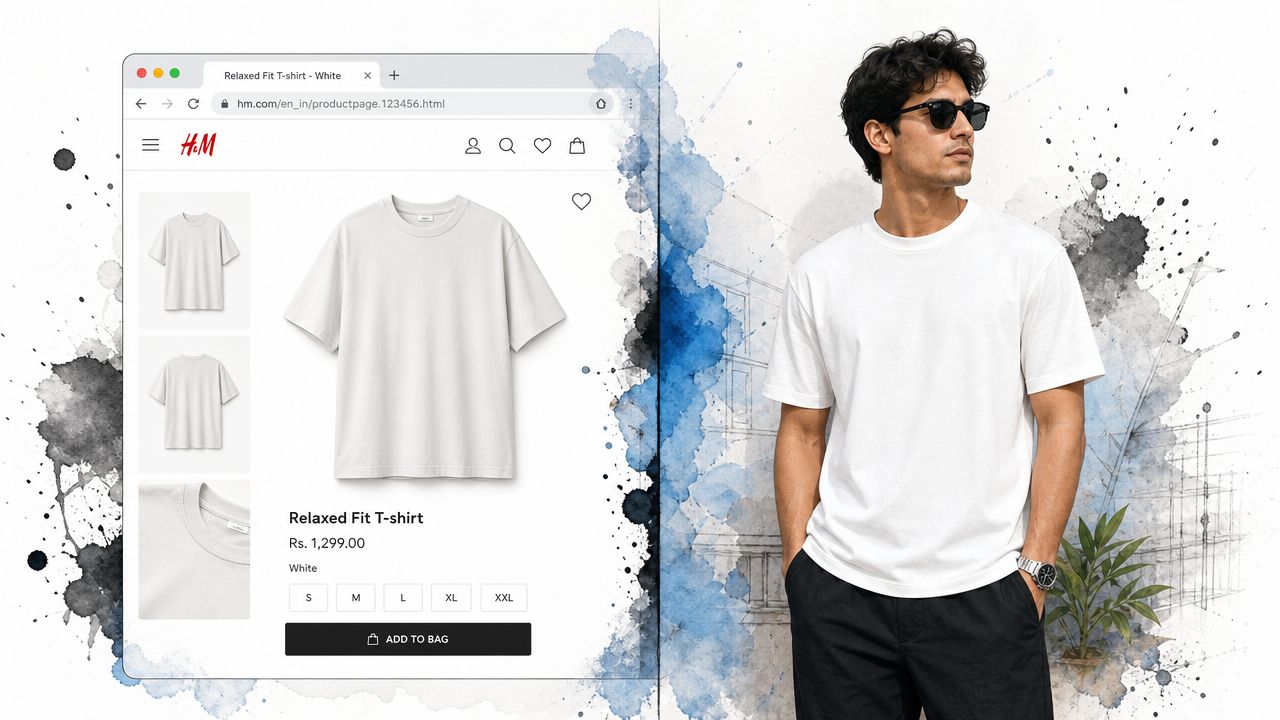
Compare without opening ten tabs
The big win here is memory relief. You do not have to remember whether the Zara trench felt sharper than the oversized H&M coat, or whether the Depop dress had a better shape than the one you saw five minutes later. You can look at the results and judge what is on the screen.
That changes the shopping mood fast. Instead of bouncing between product pages and trying to hold every detail in your head, you start spotting patterns in what suits you. Maybe cropped jackets keep looking better on your frame. Maybe warm neutrals beat bright white. Maybe a dramatic costume looks fun on the listing photo but feels wrong the second you see it on yourself.
Here's a good example of that visual payoff:

This works especially well in three situations:
- Everyday shopping when several items look similar on the store page but very different on you
- Secondhand browsing when a one-off listing might disappear before you can find it again
- Event or costume planning when the whole decision depends on the final look
Save the looks you want to revisit
A good result should still be there tomorrow.
Your saved try-on history helps when you want to narrow down options over a few days, send a few favorites to a friend, or revisit a listing before it sells. It turns a quick right-click preview into something you can use while making a decision.
Here's a quick comparison of common shopping moments and what helps most:
| Shopping situation | What usually goes wrong | What helps |
|---|---|---|
| Zara or H&M browsing | Too many similar options | Side-by-side visual comparison |
| Vinted or Depop | Hard to picture a one-off item | Fast preview on the listing image |
| Costume shopping | The style is hard to imagine | A visual try-on before buying |
If you do not have your own photo ready yet, sample photos still help you test the flow and decide whether a piece is worth a closer look.
For costume planning, the visual difference is often dramatic:
TryThisFit keeps this process simple. You right-click an image on almost any store, generate a preview, and keep the looks that deserve a second look. If you enjoy seeing product changes in action, this guide for product teams creating demo videos shows a clear way to present visual workflows step by step.
Get Magazine-Quality Results with These Photo Tips
A try-on result is only as clear as the images behind it. You don't need studio gear, but a few small choices can make the preview look much cleaner.
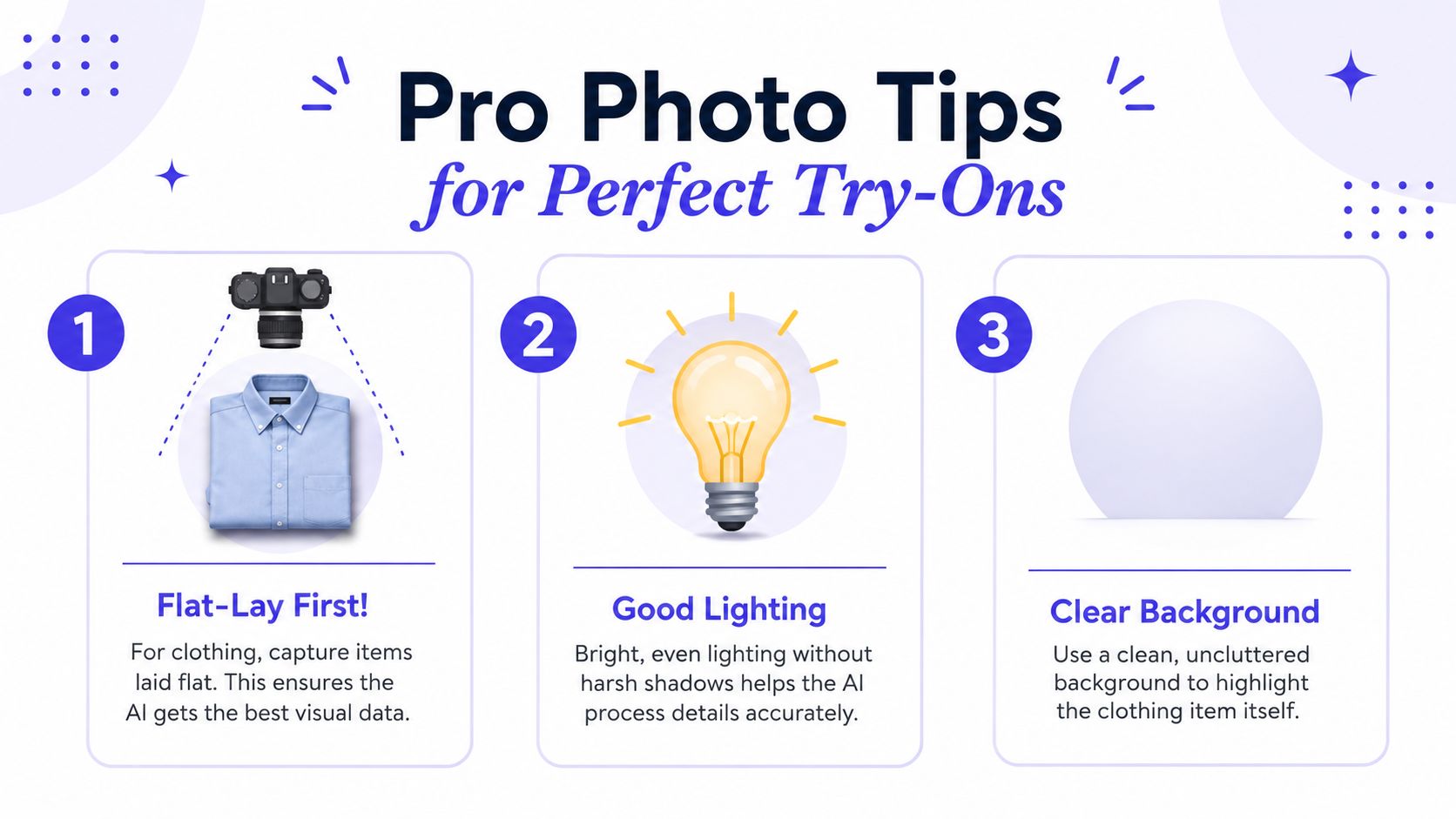
Chrome extension guidance consistently recommends keeping extensions lean and simple, and the same logic applies to inputs. Clean, well-lit images make single-purpose workflows easier to process, as noted in this extension performance guidance video.
The clothing image that works best
For clothes, flat-lay photos usually give the clearest result. That means the garment is laid flat, fully visible, and not crumpled or folded over itself.
Why that works:
- The outline is easier to read when sleeves, hems, and shape are visible.
- The style details stay clearer when the photo isn't crowded.
- The preview looks more natural because the clothing image is simpler to interpret.
Better personal photos lead to better previews
For your own photo, keep it straightforward. Face forward, use even lighting, and avoid deep shadows across your body.
Clean inputs usually create cleaner outputs. A bright phone photo often works better than a dark, dramatic one.
A plain background helps too. If you're documenting the workflow for teammates or showing how a visual tool behaves in practice, this guide for product teams creating demo videos is a smart companion resource because it focuses on clear presentation, not flashy editing.
If your first preview looks off, don't assume the extension failed. Try a cleaner clothing image first. Then try a brighter photo of yourself.
Common Questions and Your Privacy
You install the extension, open a product page, right-click the outfit, and nothing shows up. That is the moment that trips people up most often.
In many cases, Chrome is waiting for your permission on that site. It can also block extension actions in Incognito unless you turn that on yourself, as explained in Chrome's official extension access help.
If the right-click option doesn't appear
Start with the fastest checks first:
- Reload the page. Some store pages finish loading images and gallery layers a beat later.
- Check site access. Right-click the extension icon and look at the setting for what site data it can read.
- Use a normal Chrome window first. Incognito often needs separate permission.
- Make sure you clicked a real image. Video frames, sliders, and overlay galleries can block the menu item.
The key idea is simple. The extension is built for a fast right-click flow on any site, but Chrome still controls what an extension can do on each page. Once you allow access, the experience usually becomes what you wanted from the start: see a look you like, right-click it, and preview it on yourself without copying links, switching apps, or hoping the store is supported.
A simple privacy answer
Your photo is personal. The privacy story should be easy to follow.
I built this as a solo founder project, and I care a lot about that trust. The goal is to help you preview how clothes might look on you, not turn your images into something shared or sold.
If you like reading plain-language privacy examples from other software companies, this page on user information privacy shows one clear way these policies can be written.
A good extension feels quiet when it works and clear when it needs permission.
If you searched for how to use chrome extension tools for shopping, the short version is this. Install it, pin it, right-click product images, and check site permissions if a page stays quiet.
Try it for yourself with TryThisFit. Upload a photo, then right-click the next outfit you spot on Zara, H&M, Amazon, Shein, Vinted, or Depop and get to the fun part fast: seeing the style on you.
Try Virtual Try-On Now
See how clothes look on you before you buy - works with any online store
Get Started Free