How to Blend 2 Images Together Without the Awkward Seam
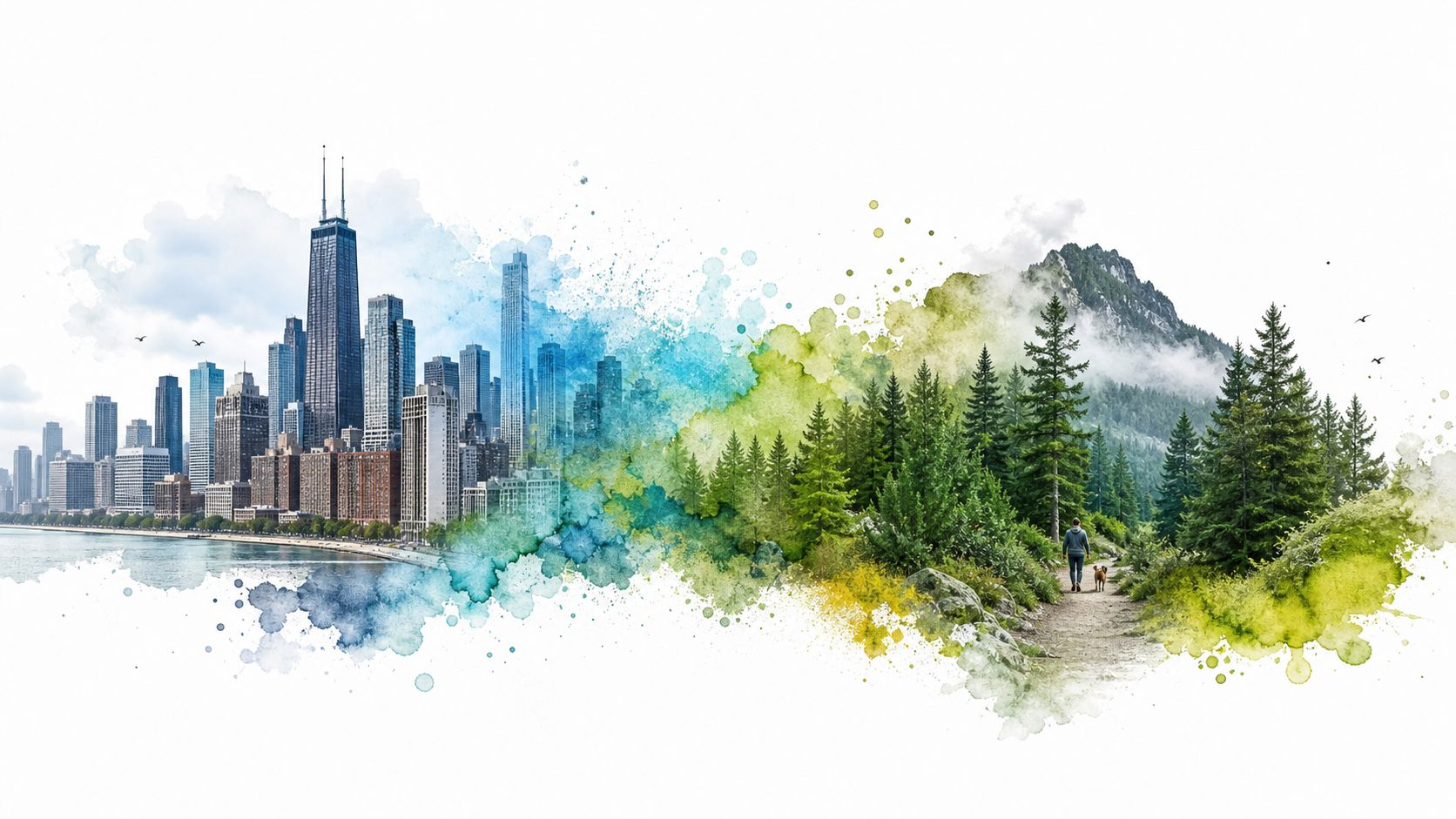
You've got two good photos and a bad seam. The first image looks right on its own, the second looks right on its own, and the moment you stack them together, the transition gives the game away. That's the frustration behind blend 2 images together, because the blend usually fails long before the opacity slider runs out of room.
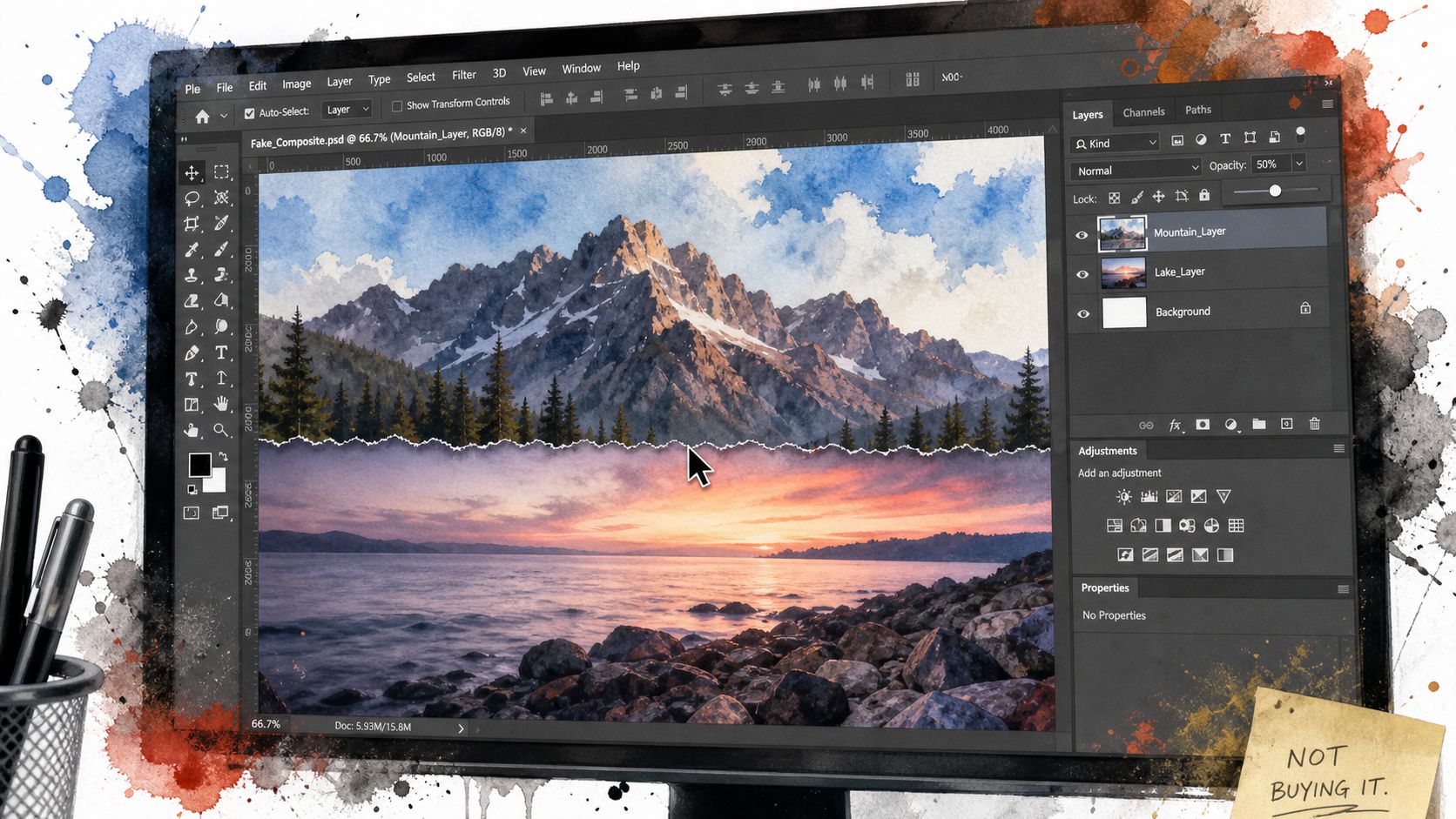
The fix is usually not “lower the opacity more.” It's a mix of mask control, color and lighting match, blend modes, and, in newer tools, AI interpretation. Once you understand the order of those levers, the whole process stops feeling mysterious.
That Awkward Seam You Keep Getting
A sunset portrait is the classic trap. You drag one photo over another, nudge the top layer down to a soft 50 percent, and still end up with a line in the middle that looks pasted, not blended. The images may overlap cleanly, but the eye catches the mismatch in brightness, color temperature, and edge treatment almost instantly.
Why opacity alone falls short
The core math is simple pixel mixing, not a magic fade. Virginia Tech's computer science material describes blending as combining RGB values with weighted percentages from each source image, which is the basis of opacity sliders, crossfades, and compositing tools, and Adobe's Photoshop guidance reflects that layered approach for composites in its blending workflow documentation. That's why a global opacity change can soften a merge, but it can't fix a bad seam by itself. Virginia Tech's blending overview
Practical rule: if the light on both photos doesn't agree, the seam will still show even when the mask is clean.
The beginner mistake is to treat the blend like a single switch. In reality, the best blends are built in layers, starting with alignment, then tone matching, then masking, then cleanup. When you follow that order, the edge stops feeling like a border and starts feeling like part of the scene.
The four levers that actually matter
One lever is the mask, which lets you decide exactly where the second image appears instead of making everything translucent. Another is the tone match, because exposure and white balance need to feel like they came from the same moment. A third is the blend mode, which changes how the layers interact. The fourth is AI, which can help when you're not doing strict pixel-perfect compositing.
That's also why practical tools matter so much. Adobe's composite guidance still leans on layered workflows and Auto-Blend for overlapping images, while modern consumer tools try to hide the complexity behind a simpler interface. If you're using clothing photos as your test case, you can also preview the appearance with TryThisFit, then keep a saved reference in your try-on history for later comparison.
Blending Two Images in Photoshop the Right Way
Photoshop is still the cleanest reference point because the workflow makes the logic visible. You stack the images, align them, fix tone, add a mask, then shape the transition with a gradient and brushwork. Adobe's own how-to guidance recommends this layered method, including a black-to-white gradient on a layer mask for gradual transitions and Smart Objects so resized elements don't lose quality. Adobe composite workflow
Start with alignment, not blending
Before you touch the mask, move the top image until the major shapes line up. If the layer has to be nudged into place, setting the blend mode to Difference temporarily makes misregistration easy to spot, since edges, horizons, and repeated patterns jump out when they don't overlap correctly. Once it's aligned, switch back to Normal and keep going. Instructables on photo blending modes
Then correct the light. Levels, Curves, and color adjustments help the two layers share the same black point, white point, and overall saturation before the blend is finalized. That matters because a perfect mask can still look fake if one side is warmer, flatter, or darker than the other.
Use the mask to build the transition
Add a layer mask to the top image, then drag a soft black-to-white gradient across the overlap. White reveals, black hides, and gray creates partial transparency, which is why the seam feels more natural than a simple opacity drop. If you need to tighten the edge, paint on the mask with a low-opacity brush first, then come back with a smaller, harder brush for edge cleanup.
A lot of beginners skip the tone work and go straight to the mask. That usually leaves halos, color contamination, or a seam that stays visible because the highlights and shadows don't match. Adobe's guide on composite creation treats exposure and color correction as part of the blend, not a separate polish pass, and that's the habit worth copying. If you want a related Photoshop workflow for clothing edits, this guide pairs well with how to change dress color in Photoshop, because the same layer logic controls both tasks.
Keep the workflow predictable
A practical order helps every time.
- Align first: line up the layers before masking so the transition doesn't fight geometry.
- Match tone next: adjust brightness and color temperature before the seam becomes visible.
- Mask third: use a gradient or brush on the layer mask to reveal only the parts you want.
- Refine last: zoom in and clean the boundary with a softer or smaller brush.
If you're stretching or repositioning a source image before blending, Satura AI's Photoshop stretching tutorial is a useful companion reference because the quality of the prep work shows up in the final seam. Good blending starts before the overlap ever happens.
Blending Two Images in GIMP Without Spending a Dime
GIMP follows the same thinking as Photoshop, but the names and layout feel different at first. You still work with layers, masks, and gradients, and you still need to decide where one image should fade into the other. The big advantage is cost, especially if you're on Linux or just want a capable free desktop editor.
Same logic, different labels
In GIMP, place the top image above the bottom one and add a layer mask to the upper layer. Then use the gradient tool to draw a transition across the mask, just like you would in Photoshop. The result is the same mental model, reveal one image, hide the other, and shape the overlap gradually instead of using a blunt transparency setting. Photoshop Essentials on blending two images
The main gotcha is that GIMP's tool names can feel less polished to Photoshop users. You may also spend a little more time thinking about layer order and feathering distance, because the interface exposes the mechanics more plainly. That's not a weakness if you like to see what's happening.
When GIMP makes more sense
GIMP is a solid choice when you're doing quick desktop edits, batch work, or any project where subscription software feels unnecessary. It's also useful if you want to learn the logic of blending without leaning on a glossy one-click interface. Photoshop still has the smoother pro workflow, especially for complex composites and Smart Object handling, but GIMP can absolutely get you to a believable result.
| Feature | Photoshop | GIMP |
|---|---|---|
| Layer masks | Native, polished workflow | Native, effective workflow |
| Gradient blending | Easy, well documented | Easy once you learn the layout |
| Smart Objects | Strong support | Limited equivalent workflow |
| Free to use | No | Yes |
| Best use case | Complex composites, pro retouching | Free desktop blending, learning fundamentals |
What to watch for
If the seam looks harsh, check the mask edge first. If the blend feels off after that, look at the light and color match, because the software won't hide a mismatch for you. The tool changes, but the visual rules don't.
Fast Blends in Web Apps and Mobile Apps
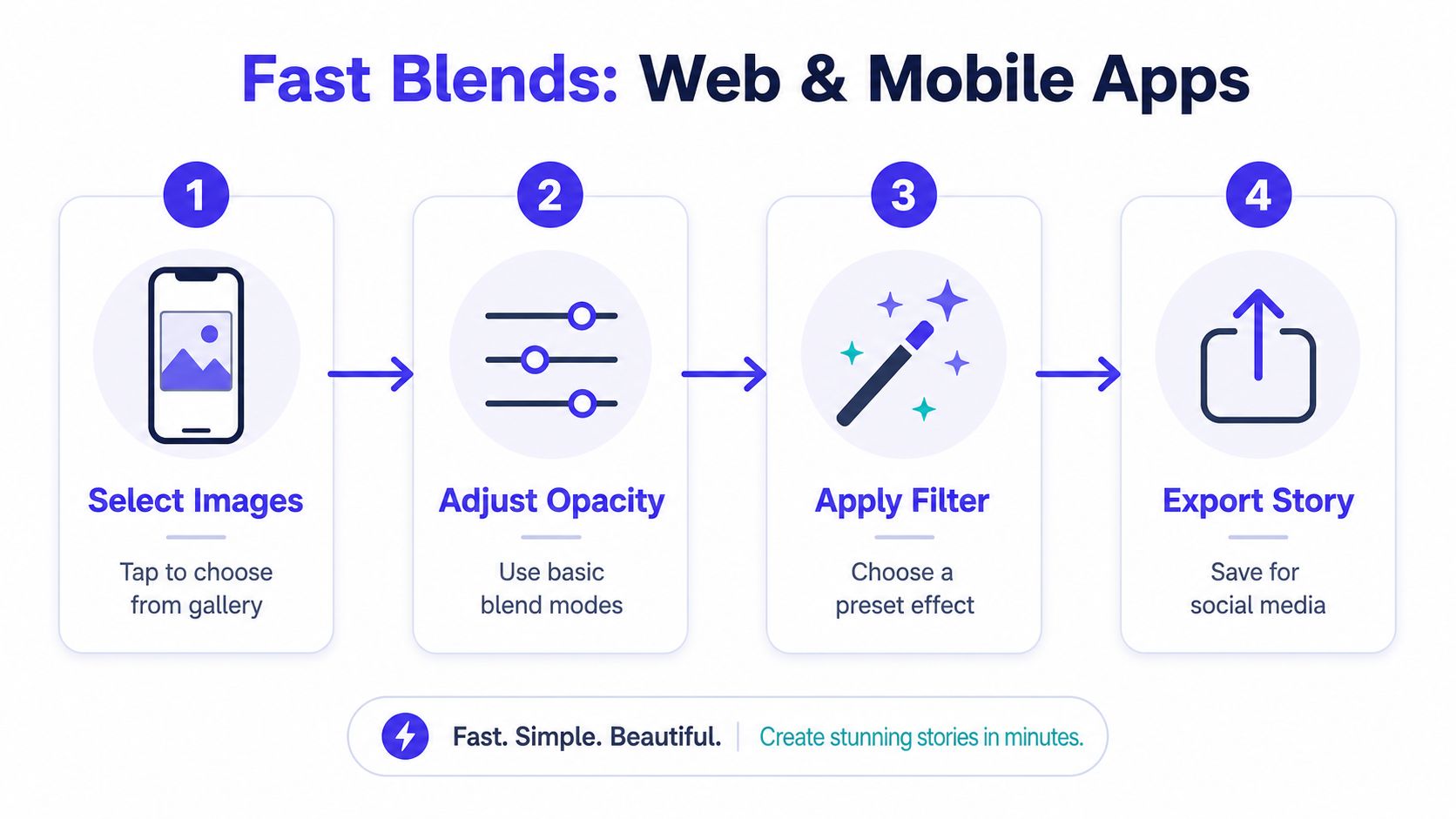
Sometimes you do not need a full desktop composite. You need a quick double exposure for a story, a clean mockup for a listing, or a fast visual check before you decide what to wear. Mobile apps and browser tools handle those jobs well because they stay out of your way.
The quick mobile route
Picsart's tutorial starts with the plus sign, then adds an overlay image, and often uses about 50 opacity as a starting point for balancing both photos. That number is not a final answer, but it gives beginners a clear first pass before they fine-tune the look. Picsart blending tutorial
Useful shortcut: if the image is meant for social media, start with a simple opacity blend and only go deeper if the seam still bothers you.
That works well when speed matters more than pixel-level realism. You can test a look, export it, and move on without opening a heavyweight editor.
Browser-based blending feels even lighter
Some web tools keep the whole edit inside the page, which makes the process feel closer to dragging overlays than building a formal composite. The Chrome-extension style workflow is especially useful when you want to see how a clothing item looks on your own photo, because you stay in the same browsing flow instead of downloading assets into separate apps. For shopping-specific previews, the free Chrome extension at TryThisFit's extension page installs in a couple of seconds and works by right-clicking product images on sites like Zara, H&M, Amazon, Shein, Vinted, and Depop.
That right-click flow is what makes it feel so immediate. You are not building a full montage, you are checking the appearance fast, then deciding whether the style is worth your time. If you want a broader clothing try-on workflow, this suit-to-photo tool shows how browser-first blending can support wardrobe planning without extra steps.
When convenience beats control
Web and mobile tools are a good fit for Halloween costume previews, secondhand finds, and quick fashion checks. They are less useful when you need exact edge control, realistic shadows, or a composite that has to survive zooming and close inspection. Use the lighter tools for speed, and save the desktop editor for anything that needs careful finishing.
Using AI Tools to Blend Two Images
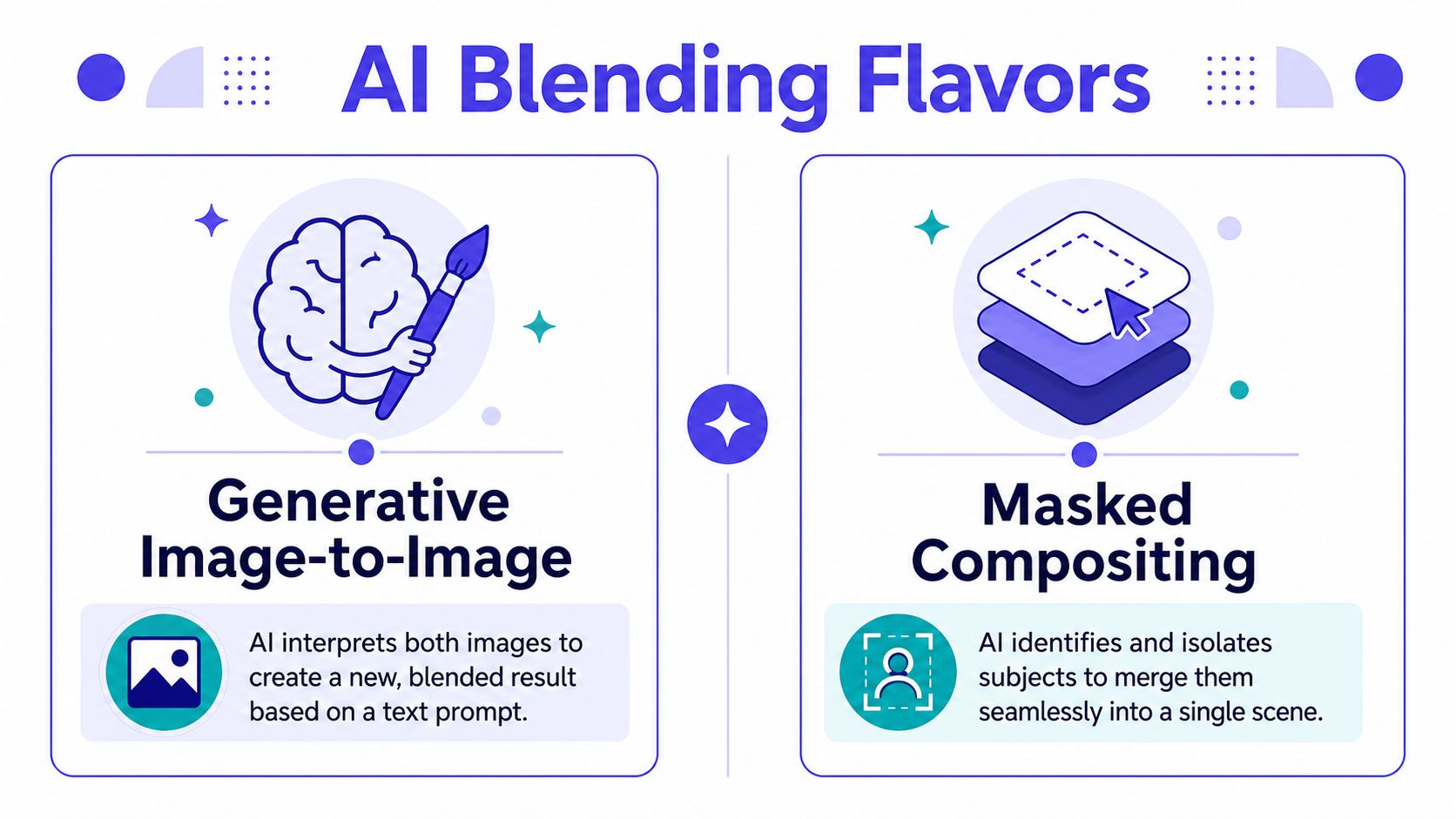
AI blending is a different discipline from layer masking. Instead of asking you to paint the seam by hand, the tool interprets both images and decides how to combine them, which is useful when you want style, mood, or scene-building rather than strict manual control. Google's Gemini 2.5 Flash Image announcement describes multi-image fusion, where the model can understand and merge multiple input images, and it also notes targeted transformations through natural language editing. Google Gemini 2.5 Flash Image
Two AI paths, two different jobs
The first path is image-to-image generation, where the strength control decides how much original structure survives. A practical range is around 0.3 to 0.6 when you want to keep recognizable geometry while blending style or content, and that range is useful because it balances preservation against over-transformation. The second path is dedicated multi-image fusion, where the model merges more than one source into a new image from a prompt.
Midjourney's /blend feature made that workflow feel much simpler for consumers by letting users combine 2 to 5 images through Discord slots instead of manually pasting URLs. That range matters because it turned multi-image blending into a native user action instead of a specialist editing trick. Midjourney blend overview
Where AI shines
AI is strongest when the goal is atmosphere, concept art, storytelling, or a stylized merge. It can also help when the two source shots aren't perfectly matched, especially if the software offers auto-align or deghosting to clean up motion or handheld shifts. For a prompt, describe how the images should relate to each other, not just what they are.
Good prompt habit: describe the relationship, the lighting mood, and the intended scene, then let the model interpret the merge.
Where AI falls short
AI is weaker when you need faithful product geometry, clean edge detail, or repeatable visual accuracy. That's why it works beautifully for fantasy scenes and mood boards, but less reliably for precise apparel previews where a collar, hem, or silhouette has to stay true. If you're exploring a visual try-on workflow rather than a pure image-generation workflow, TryThisFit's AI image-to-image page is the more relevant path, because it focuses on seeing how clothing looks on a person rather than inventing a new scene.
Why Your Blend Still Looks Fake and How to Fix It
A clean mask doesn't guarantee a believable composite. The seam often survives because the two images disagree about light, color temperature, or texture, and the eye catches that disagreement faster than it notices the transition itself. That's why the diagnosis matters more than the final brush strokes.
Check the seam like a retoucher would
Look for halos around high-contrast edges first. Then compare black point, white point, and saturation between the layers, because mismatched contrast and color balance are often what make the join feel artificial. If the subjects are lit from different directions, the blend can still look wrong even when the mask edge is technically clean.
Matching tone before final masking helps a lot. Levels and Curves are the usual tools for that, and a subtle warm or cool solid-color wash at low opacity can bind the layers together once the basic correction is in place. Adobe-style compositing walkthroughs also emphasize color grading and adjustment layers for exactly this reason. Adobe composite creation with extended depth of field
The hidden giveaways are usually small
Grain mismatch is another tell. If one photo looks smooth and the other has visible noise or texture, the split can remain obvious even after careful blending. Shadow direction can cause the same problem, because the composite feels physically impossible when the highlights and shadows disagree.
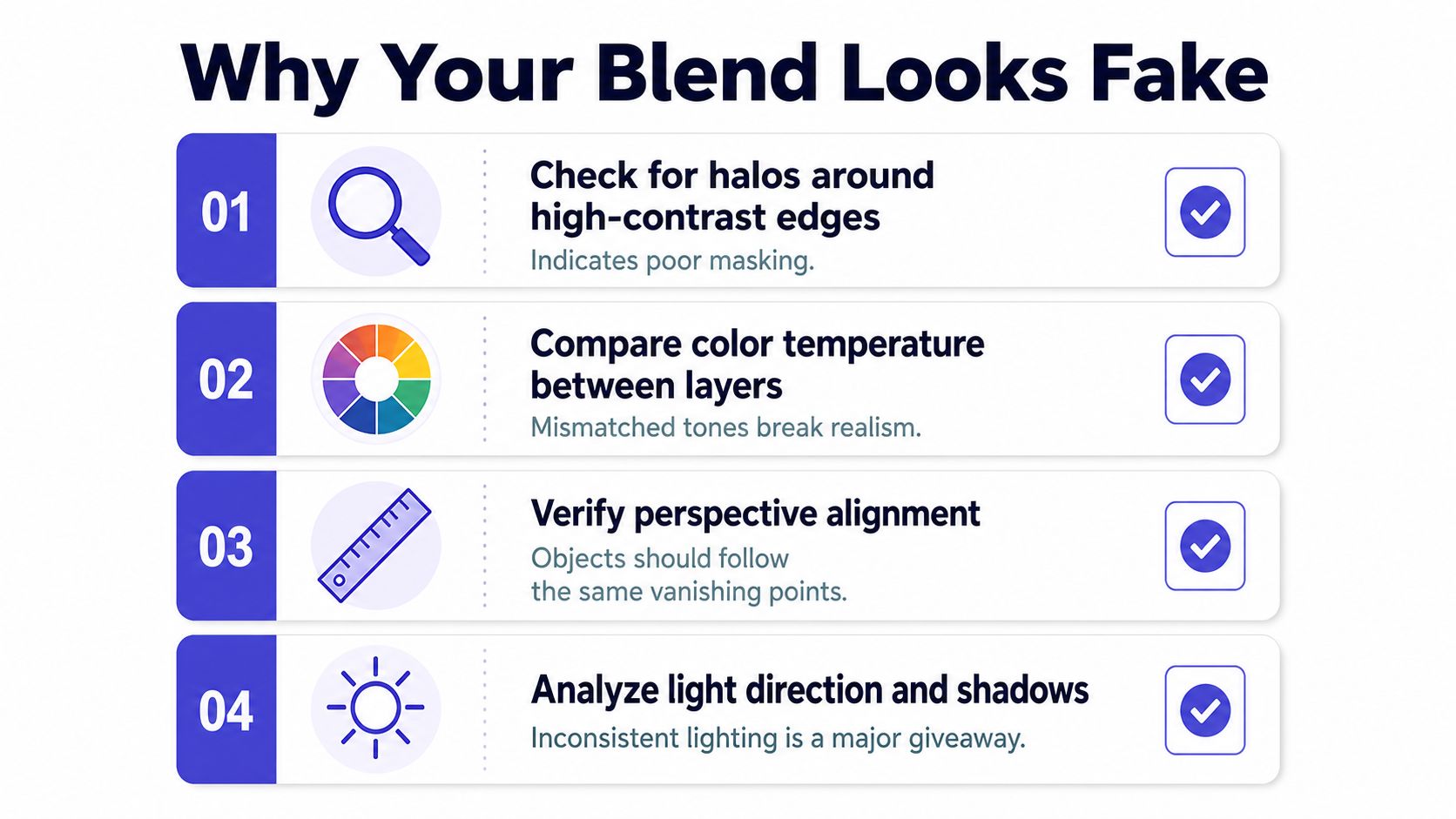
Pre-flight check: halos, color mismatch, shadow direction, and grain consistency tell you more than a fancy effect ever will.
If you only remember one thing, make it this. The mask hides the join, but matching the images makes the join believable. That's the difference between a quick overlay and a composite that feels finished.
Export Settings and Common Mistakes to Avoid
Save the file the way you plan to use it. PNG is the safer choice if you need transparency, while a high-quality JPEG makes sense for sharing when you don't need layered flexibility. If you think you'll edit again, keep the layered master file too, because flattening too early makes small fixes harder later.
A few mistakes show up again and again. Skipping the tone match, ignoring shadow direction, using a hard mask edge, forgetting to convert a moved element to a Smart Object before scaling, and pushing AI strength so far that the second image gets swallowed are the ones that usually wreck the final image.
Simple rule: if the blend looks fake before export, exporting won't save it.
For screen use, keep the colors consistent with how the image will be viewed. For print, check your export settings more carefully, because a blend that looks smooth on a phone can shift when reproduced elsewhere. Keep the final version clean, but don't throw away the editable one.
If you want a faster way to see how a style looks before you commit, TryThisFit lets you preview clothing on your own photo in seconds with a free Chrome extension and no account needed. It's a practical companion to the blending mindset, especially for shopping, secondhand finds, and costume ideas, because you can visit TryThisFit and start checking the appearance right away.
Try Virtual Try-On Now
See how clothes look on you before you buy - works with any online store
Get Started Free