Right Click Context Menu: A Practical User Guide
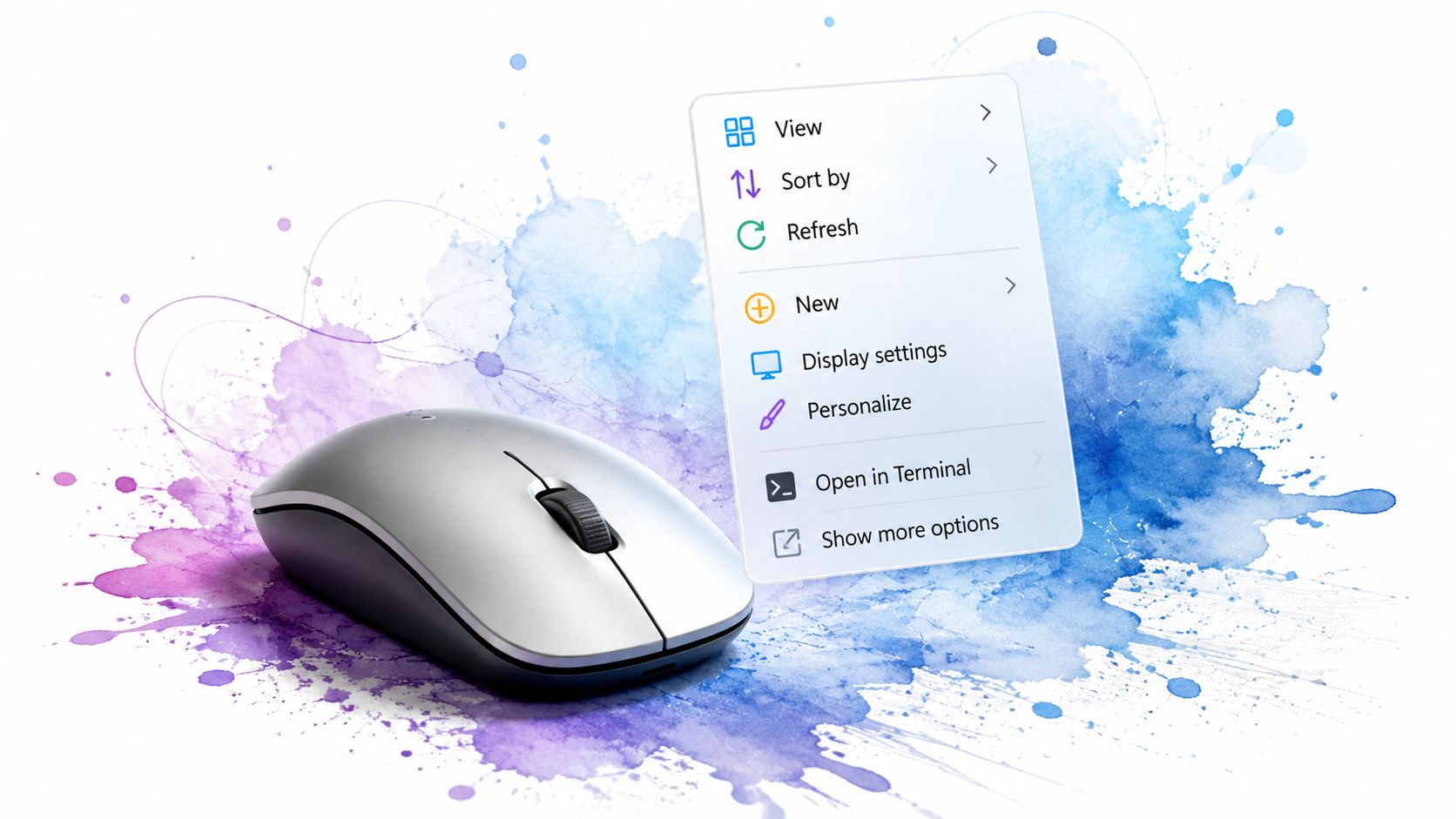
You're probably using the right click context menu dozens of times a day without thinking much about it.
You right-click a file to rename it, an image to save it, a link to open it in a new tab, or a folder to create something new. That tiny pop-up menu feels so ordinary that it almost disappears into the background, yet it's one of the shortest paths between “I want to do this” and “it's done.”
What makes it interesting now is that the same simple gesture powers old-school desktop tasks and newer visual tools inside the browser. A feature that started as a fast way to act on files can also help you preview the appearance of clothing from online stores, save time while shopping, and make the web feel more interactive.
The Secret Menu Hiding in Plain Sight
A right click context menu is the menu that appears when you right-click something specific. The key word is context. You don't get the same choices everywhere, because the menu changes based on what you clicked.
Right-click a photo and you might see options to open, edit, copy, or save it. Right-click a folder and you'll get a different set of actions. Right-click selected text in a browser and the menu changes again.
That's why the context menu feels so efficient. It's less like a giant control panel and more like a small tool tray that follows your hand around, offering the most relevant tools for the object in front of you.
Practical rule: If a task feels buried in menus, try right-clicking the item first. There's a good chance the shortcut is already there.
A lot of people think of right-click as a minor convenience. It's more useful than that. It reduces hunting, scanning, and extra movement because the commands come to the thing you're working on instead of forcing you to travel up to a toolbar or menu bar.
That's also why it can feel surprisingly personal. Two people can use the same app and have different experiences based on what they right-click, which file types they use, and which tools they've installed.
Why people overlook it
The right click context menu is small, quiet, and rarely explained.
Many users learn one or two basic moves, then stop there. They know “Rename,” “Copy,” and “Open in new tab,” but they never explore how the menu changes across systems, how apps can add useful commands, or how browsers and extensions can turn it into something much smarter.
Why it matters now
Today, right-click isn't just about files on your desktop.
It's also a bridge between the operating system, the browser, and specialized tools. That's where things get fun, because the same gesture that opens a folder action can also trigger a workflow for shopping, saving media, or previewing how a look might appear on you before you buy it.
Your Context Menu on Windows Mac and Linux
Open the same photo on a Windows PC, a Mac, and a Linux desktop, then right-click it. You are asking the same question each time, "What can I do with this?" The answer changes with the operating system, and those differences shape how fast the menu feels, how much it shows, and how easy it is to bend to your habits.
The idea itself has been around in mainstream graphical interfaces for decades. Windows 95 helped popularize object-specific shortcut menus for everyday users, as noted in Wikipedia's context menu overview.
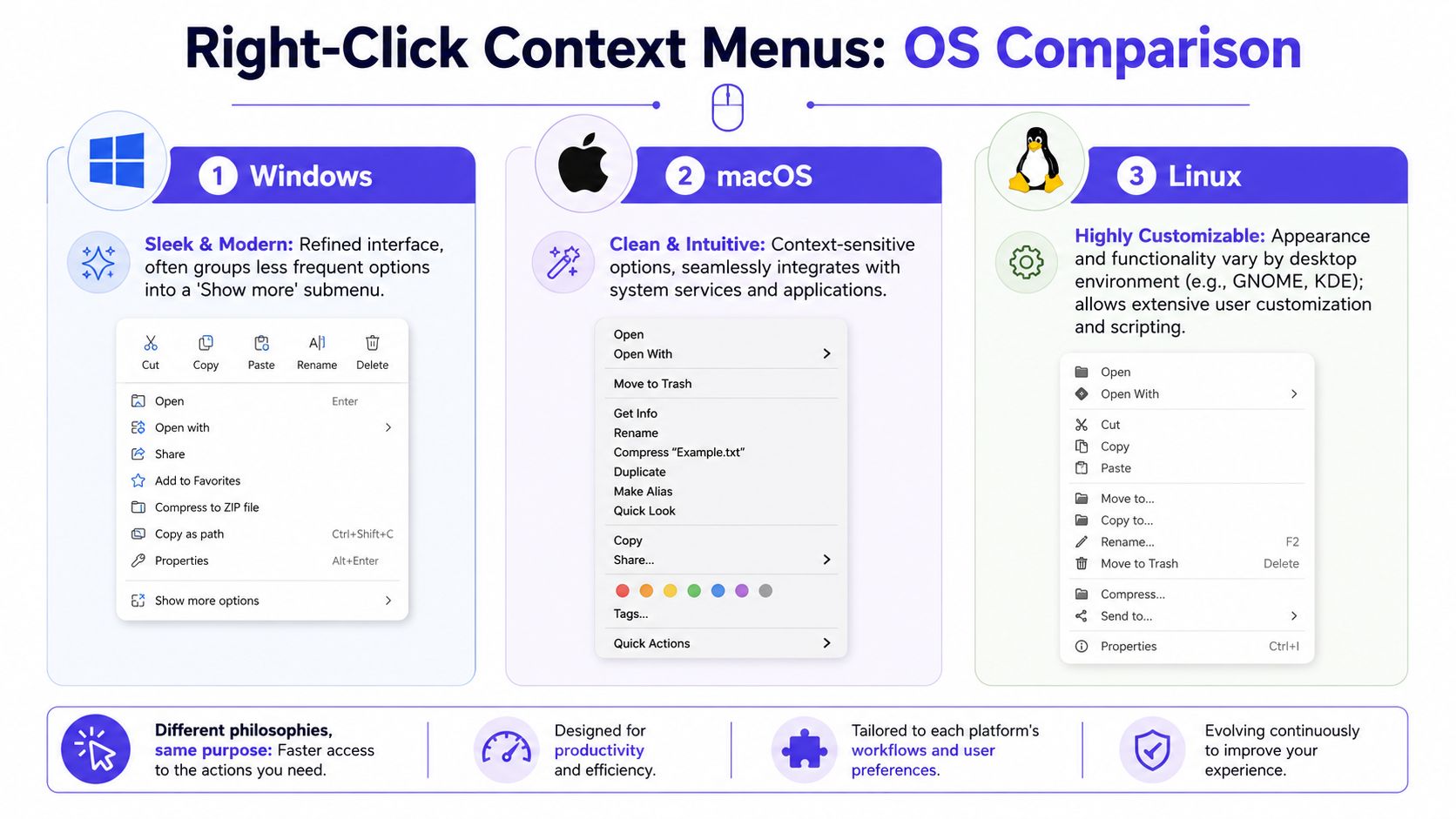
Windows feels familiar, but it often has two layers
Windows usually gives you the broadest mix of built-in commands and app-added shortcuts. That can be helpful, especially if you edit files, compress folders, scan with security tools, or send items into another app with one click.
Windows 11 cleaned up the first menu you see, which makes common actions easier to spot. But many third-party commands and older entries sit behind Show more options, so the menu can feel like a front desk with a back room.
For casual use, that trimmed first layer often feels calmer. For someone who installs a lot of software, it can feel like the useful tools are one extra click away.
macOS keeps the experience steadier
On a Mac, the context menu often feels more consistent from app to app. The wording is usually restrained, the spacing is tidy, and system services tend to blend into the menu without drawing much attention to themselves.
That consistency lowers friction. You are less likely to wonder whether the menu is hiding a second, older version somewhere else.
Mac users also tend to meet the context menu through more than one gesture. A right-click, a two-finger tap on the trackpad, or Control-click can all open the same menu. Once that clicks, the feature feels less like a hidden trick and more like a standard part of using the system.
Linux gives you flexibility, with fewer assumptions
Linux is different because "Linux" can mean GNOME, KDE Plasma, Xfce, Cinnamon, and many other desktop environments. Each one can treat right-click menus a little differently.
That variety can confuse new users at first.
It also gives experienced users more room to shape the menu around real work. Some file managers expose custom scripts, actions, or extension-based commands very directly. If you like tailoring your desktop, Linux often feels less like a fixed appliance and more like a workbench.
A quick comparison
| System | What you'll notice first | Typical feel |
|---|---|---|
| Windows | Cleaner first menu, with some commands tucked behind another click | Familiar, capable, sometimes layered |
| macOS | Menus usually look and behave consistently across apps | Controlled, steady, polished |
| Linux | Behavior depends on desktop environment and file manager | Flexible, varied, highly adjustable |
Those differences matter more than they seem. A right-click menu is not just a list of commands. It is a shortcut philosophy.
Windows often tries to balance simplicity with decades of compatibility. macOS usually favors consistency. Linux often favors user choice.
That matters outside the desktop too. The same habit of right-clicking a file, image, or product photo carries into the browser, where modern tools can turn a plain menu into a visual workflow. For example, someone browsing clothes online might right-click an image to save it, search for similar items, or send it into a virtual try-on tool. The menu starts as a tiny operating system feature and ends up supporting a practical shopping decision.
If you also like visual polish at the desktop level, small touches such as personalize your digital space with icons can make those everyday interactions feel more intentional.
How to Customize Your System Context Menu
Customizing the right click context menu sounds more technical than it really is. At heart, you're just deciding which shortcuts deserve a front-row seat.
If you always open folders in a certain terminal, convert images with one app, or send files into a repeated workflow, adding the right command can remove a lot of friction. It's the digital version of keeping your favorite kitchen tools on the counter instead of buried in a drawer.
Windows customization starts with shell entries
On Windows, one classic route is editing the Registry so a command appears when you right-click a folder or a file type.
The technical idea is straightforward. Windows looks in specific registry paths, such as HKEY_LOCAL_MACHINE\SOFTWARE\Classes\Directory\shell, and the command can use %1 as a placeholder for the file or folder you clicked, which is explained in this guide to adding right-click context menu items in Windows.
If that wording makes your eyes glaze over, think of it this way:
- The registry path is the drawer where Windows checks for extra menu commands.
- The menu item name is the label on the drawer.
%1is the note that says “insert the clicked file here.”
That's the whole trick. You're telling Windows, “When I right-click this kind of thing, show this command, and pass the selected item into it.”
What to add and what to avoid
Useful additions are usually narrow and specific.
- A folder shortcut: Open this folder in a terminal or code editor.
- A file action: Send a text file to a script or open it in a preferred app.
- A media task: Convert or resize from the context menu instead of launching the full application first.
Don't add everything. A crowded menu defeats the point.
Keep only the commands you'll actually use in the moment you right-click. Convenience disappears when the menu turns into a junk drawer.
macOS uses a friendlier path
On macOS, Quick Actions make customization feel less intimidating.
Instead of editing a registry, you can create automations with Automator or Shortcuts and let them appear in Finder's context menu. That works well for repetitive actions like renaming batches of files, resizing images, or moving items to a favorite workflow.
Personalization matters beyond menus
The reason menu customization feels so satisfying is that it changes the computer from a generic machine into your machine.
If you enjoy tuning that kind of visual and functional workspace, this guide on how to personalize your digital space with icons is a nice companion idea. Menus, icons, shortcuts, and file actions all shape how fast your desktop feels when you use it every day.
How Web Browsers Change The Game
The browser adds a strange twist to the right click context menu. You're no longer dealing only with your operating system. You're also dealing with the website sitting inside the browser.
That means a page can influence what happens when you right-click. Sometimes it leaves the normal menu alone. Sometimes it adds web-specific behavior. Sometimes it blocks the menu entirely.
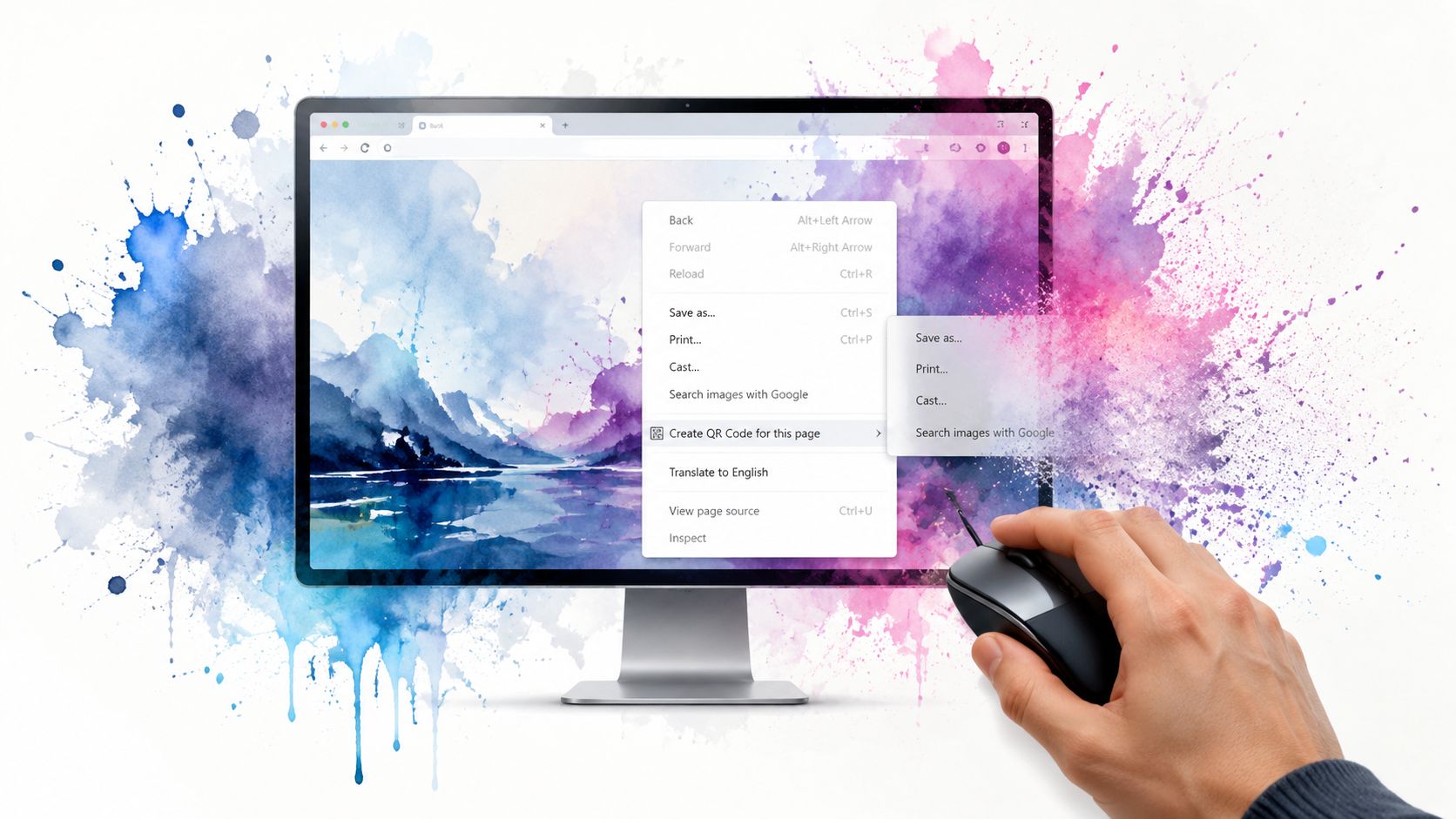
Why some sites block it
Many websites restrict right-clicking to prevent users from copying or pasting content, which acts as a content-protection measure that blocks the browser's default context menu, as described in this overview of sites that disable right-click behavior.
If you've ever right-clicked a photo and nothing happened, or tried to copy text and found the page fighting you, that's usually what's going on. The site listens for the browser's contextmenu event and interrupts it.
Why that matters in normal life
This isn't just a technical quirk.
It affects basic actions people rely on all the time, like opening links in new tabs, saving product images, copying text, or checking image URLs. On shopping sites, it can be especially annoying because product photos are often the very thing you want to inspect, compare, or save.
The browser becomes a second layer of control
Once you understand that the browser is its own layer, the right click context menu starts to make more sense.
You have the operating system's logic underneath, the browser's own built-in menu on top of that, and then a website trying to influence the experience from inside the page. That stack is why right-clicking a file on your desktop feels predictable, while right-clicking inside a website can feel inconsistent.
Some right-click frustrations aren't computer problems. They're website decisions.
That also explains why browser extensions matter so much. They can restore missing behavior, add new options, and turn the browser's menu into something more useful than the page intended.
Supercharge Your Browser with Context Menu Extensions
At this point, the right click context menu stops being a passive menu and starts acting like a launch button for custom tools.
A browser extension can add commands that appear only in the right place, such as on selected text, links, images, or page backgrounds. That means the menu becomes more precise and more helpful at the exact moment you need it.
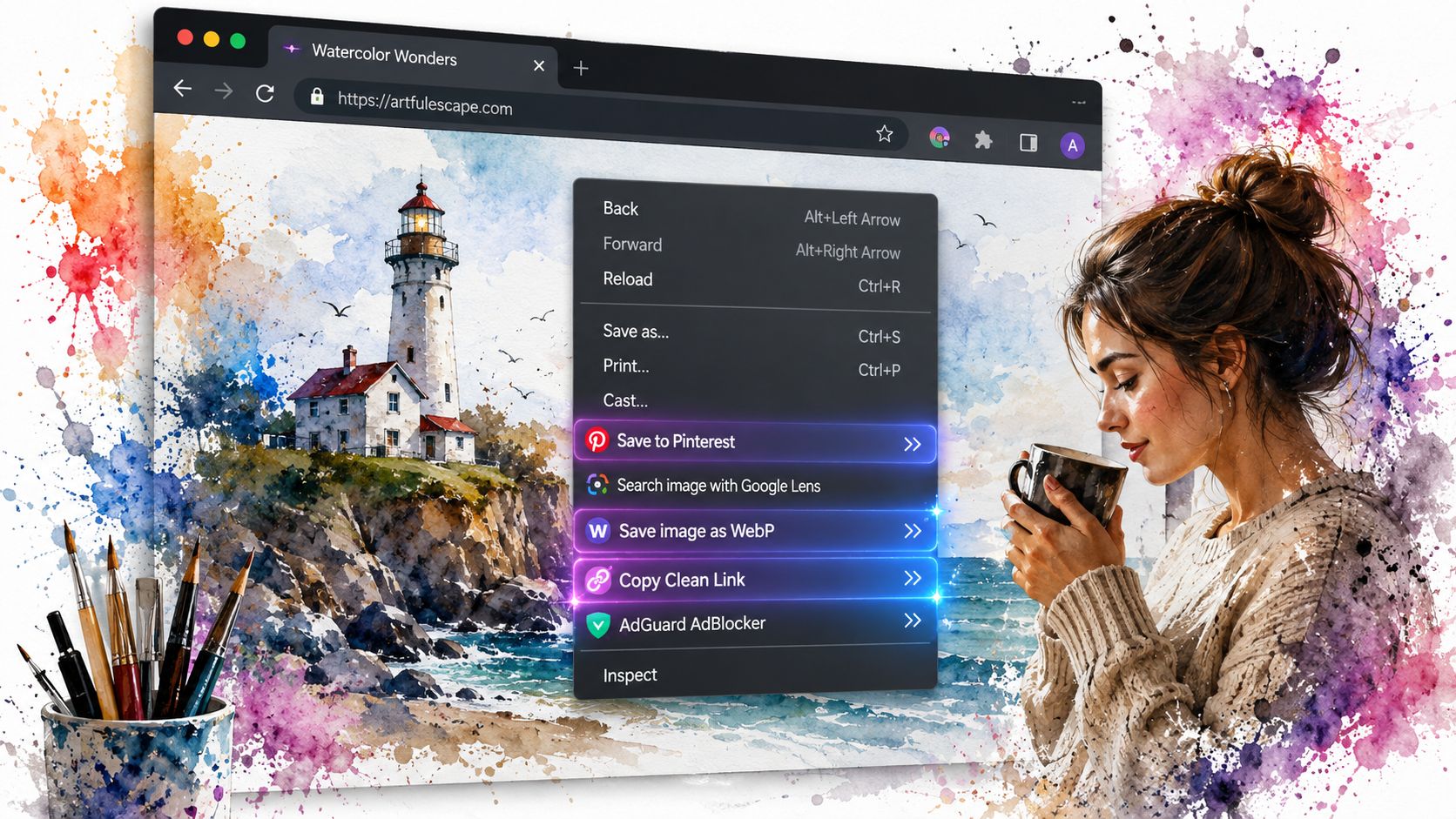
How extensions hook into the menu
In Chrome, extensions can add custom options through the official chrome.contextMenus API, which lets developers register menu items for specific situations, as noted in this explanation of the Chrome contextMenus API.
That matters because it means an extension doesn't have to clutter every page all the time. It can wait, then appear only when you right-click an image, a product photo, or some selected text.
If you want a plain-English overview of how that extension model works, this quick explainer on what a Chrome extension is is useful background.
Common ways people use this
Some right-click extensions are practical and almost invisible once installed.
- Re-enable blocked actions: Some extensions restore the normal menu on sites that disable it.
- Add research shortcuts: Others let you search selected text, translate it, or save it somewhere.
- Work directly with media: Image-related extensions can add commands for saving, copying, or sending content into another tool.
Why this feels more powerful than app buttons
App buttons are fixed. A context menu option appears only when it's relevant.
That makes the workflow feel lighter. You don't need a giant toolbar for every possible task. You just right-click the thing itself and act on it.
One especially interesting use is style visualization while shopping. Instead of copying a product image, opening another tab, and going through several steps, the right click context menu can become the shortcut that sends that image straight into a visual preview flow.
Instantly Visualize Your Style with TryThisFit
You are browsing for clothes, open three store tabs, and keep asking the same question. Would this suit me, or does it just look good on the model?
That small moment of hesitation is a good example of why the right click context menu matters. A tool that usually feels basic can become a shortcut for something much more visual. Instead of treating right-click as a menu for copying and saving, you can use it as a quick path from a product photo to a try-on preview.
TryThisFit applies that idea to online shopping. On clothing pages, a right-click action can send the product image into a virtual try-on flow, which is far quicker than saving the image, opening another tool, and starting from scratch. If you want a broader look at similar shopping tools, this guide to shopping with Chrome extensions shows the category well.
How the workflow feels in practice
The appeal is simple. You stay on the page you are already viewing.
Right-clicking a product image works like using a shortcut key on a keyboard. The command is small, but it removes several steps. For a shopper, that means less tab switching and a faster answer to the main question, which is whether the item fits the style you want.
If you want the exact click-by-click flow, the walkthrough on how to use the Chrome extension explains it clearly.

Where this is most useful
This kind of preview helps most when the store photo gives you limited context.
- Secondhand listings: Marketplaces such as Vinted and Depop often have inconsistent photos. A quick preview helps you judge the overall vibe before you spend time comparing listings.
- Fast-moving retail sites: Stores like Zara, H&M, and Shein add new items constantly. A right-click try-on keeps the comparison process quick.
- Costume and event shopping: Statement pieces can be hard to judge from a flat image alone. A preview gives you a better sense of the silhouette and mood.
- Everyday outfit planning: You can check whether a color, cut, or category fits the look you already have in mind.
Flat product shots usually work best because they are easier for a visual tool to separate from the rest of the page. That is one reason this feature fits online shopping so well. Many stores already present clothing in exactly that format.
The bigger idea is easy to miss. A right click context menu is one of the oldest parts of everyday computing, but here it supports a very modern task. It turns a common browser action into a visual shopping assistant, which makes the menu feel less like a technical feature and more like a practical tool for deciding what to wear.
Troubleshooting and A Quick Developer Look
A cluttered right click menu usually has a boring cause, which is good news. The menu may be crowded by installed apps, a browser extension may be misbehaving, or a specific website may be catching the click before the browser can show its usual options.
Start by isolating where the problem happens.
- Test different places: Right-click on the desktop, then in File Explorer, then inside your browser.
- Check extension conflicts: If the problem shows up only in Chrome, turn extensions off one at a time and test again.
- Look for site-level blocking: If it fails on one page but works everywhere else, that site may be intercepting the click.
- Check missing image actions: If a shopping page limits image options, this guide on how to copy an image from a website explains common workarounds.
That process works like checking whether a lamp, the lightbulb, or the wall switch is causing the issue. You test one layer at a time instead of changing everything at once.
A simple developer mental model
The technical side is less intimidating than it sounds. In Chrome, an extension can add a menu item with chrome.contextMenus.create(), decide where it appears, such as only on images, and choose what happens after the click.
That simple pattern explains why modern tools can attach themselves to an old feature so neatly. The menu is not just a leftover piece of the operating system. In a browser, it becomes a small launch point for useful actions, including visual shopping tasks such as trying clothing on from a product photo.
When less is better
A good context menu feels like a tidy toolbox. The tools you reach for often should be there. The rest should stay out of the way.
If every app and extension adds extra commands, the menu becomes slower to scan and harder to trust. A smaller set of relevant actions usually works better, whether you are managing files, saving images, or using a right-click try-on flow while shopping online.
If you want to keep exploring that idea, TryThisFit is a practical example of how an everyday right click can support a modern visual task. As noted earlier, you can use it to preview how clothing might look on your own photo, compare items more visually, and save outfits to revisit later.
Try Virtual Try-On Now
See how clothes look on you before you buy - works with any online store
Get Started Free